Step-by-step guide
iPad Widgets: How to Add, Resize and Use Extra-Large Widgets
Add widgets to the iPad Home Screen, change their size, use extra-large widgets and the Lock Screen, with screenshots from iPadOS 27.
To add a widget on iPad, touch and hold the Home Screen background, tap the edit button at the top, then tap Add Widget, pick a size and place it. The iPad Home Screen has room for widgets of every size, including extra large, so it is the best place to try a big calendar, photo or decorative widget.
Add a widget to the iPad Home Screen
- Go to the Home Screen page where you want the widget.
- Touch and hold an empty part of the background until the apps jiggle.
- Tap the edit button at the top of the screen, then tap Add Widget.
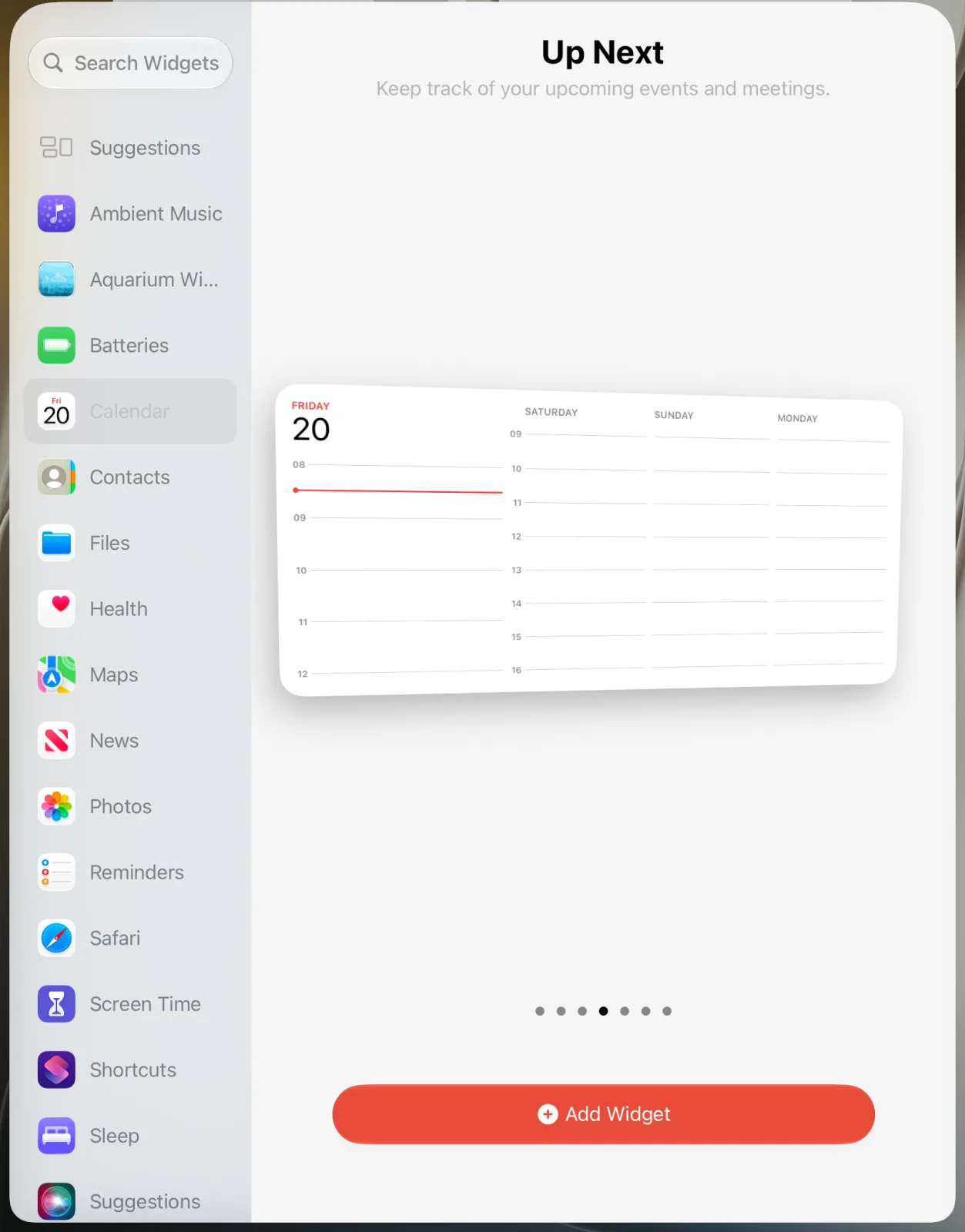
- Choose an app from the list or search for it, then swipe left and right through its styles and sizes.
- When you see the one you want, tap Add Widget. Drag it into place and tap Done.
These are the steps in Apple’s iPad guide to widgets ↗. The same guide explains a shortcut: touch and hold an app icon and choose one of the size buttons at the top of the menu to turn that app into a widget.
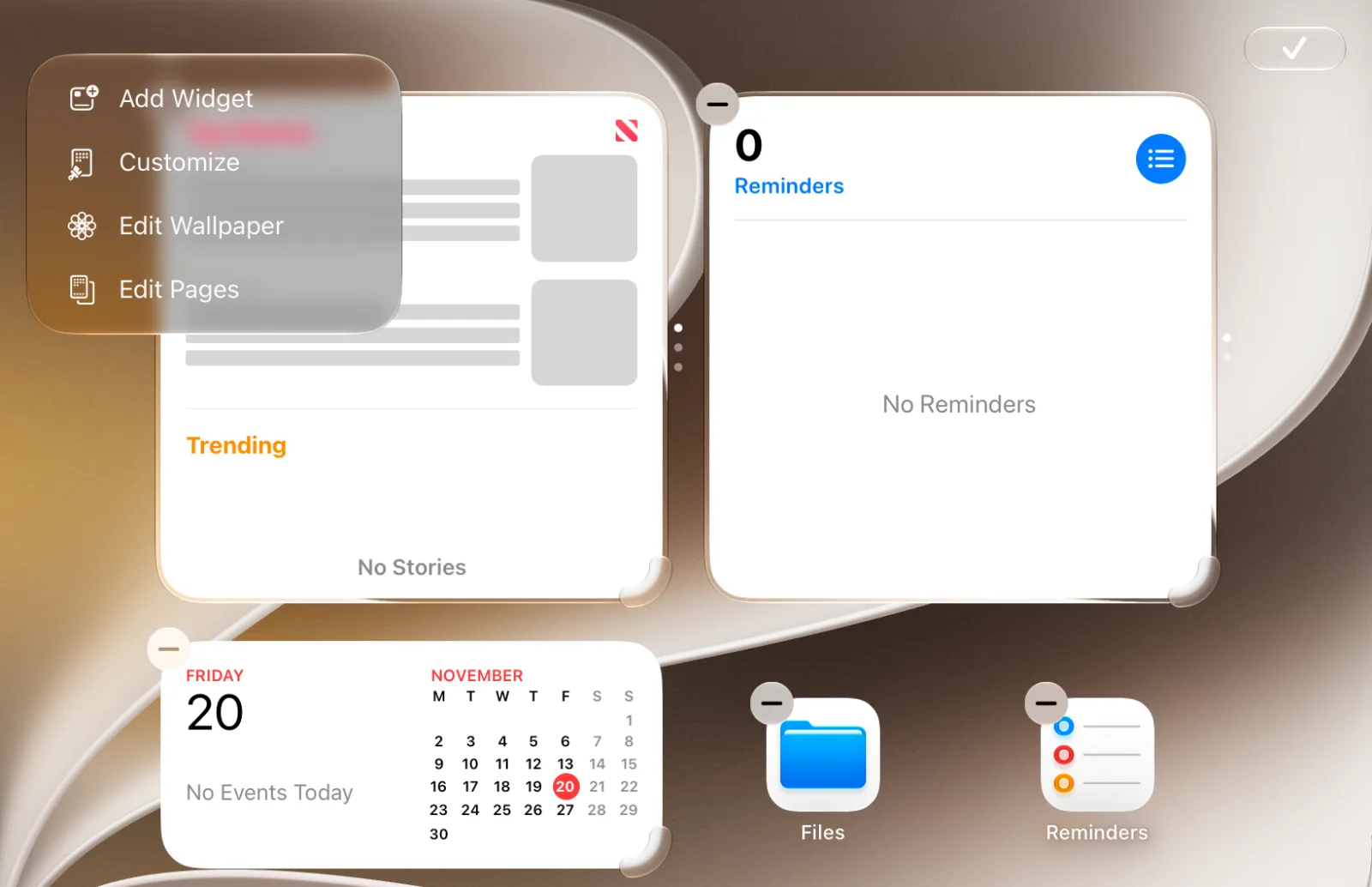
Resize, edit and remove widgets
| You want to… | Do this |
|---|---|
| Change the size | Touch and hold the widget and choose another size |
| Change what it shows | Touch and hold it, tap Edit Widget (or Edit Stack) |
| Turn it back into an icon | Touch and hold it and tap the App Icon button |
| Remove it | Touch and hold it and tap Remove Widget |
Resizing comes from Apple’s Home Screen customization guide ↗, which also notes that some apps offer only small and medium widgets while others go up to extra large. Removing is covered in Apple’s guide to moving apps and widgets ↗. Inside a Smart Stack you can turn Smart Rotate and Widget Suggestions on or off, according to Apple ↗. Our widget stack guide shows how to keep a stack tidy.
Extra-large widgets on iPad
Extra large is the biggest size on the iPad Home Screen. Not every app offers it, so swipe through all of an app’s options in the gallery before you decide it is missing. Calendar, for example, has an extra-large Up Next widget with today on the left and the following days beside it.
On the same Customize screen you can switch every icon and Apple widget to Dark, Clear or Tinted, or make icons larger, as Apple describes ↗. Lock Screen widgets are added separately: touch and hold the Lock Screen, tap Customize, then tap Add Widgets, following Apple’s Lock Screen guide ↗.
A panoramic aquarium for the iPad Home Screen
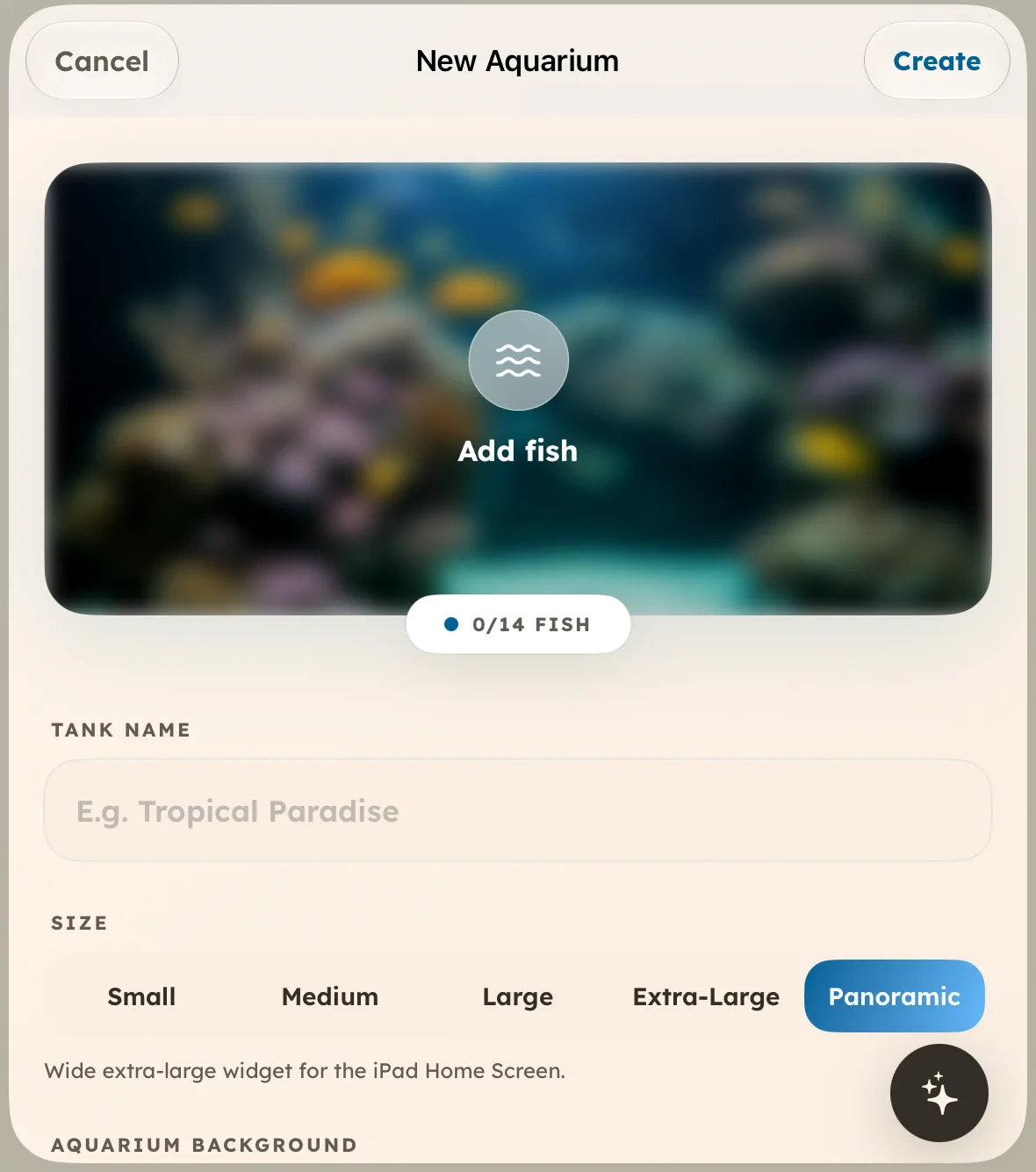
Aquarium Widgets, our app, added a Panoramic aquarium in version 1.8.2. It is made for the wide extra-large iPad widget, holds up to 14 fish and can show a clock, date or calendar like the other sizes, according to the App Store notes ↗. Create a Panoramic aquarium in the app on your iPad, then add the Panoramic Aquarium widget from the gallery. Aquarium Widgets is free to download; putting an aquarium on your Home Screen requires the premium upgrade, sold as a subscription or a one-time purchase.
For layouts that use these sizes, see our iPad Home Screen ideas. If a widget does not appear, the checklist in widget not showing applies to iPad too.
Frequently asked questions
How do I add widgets on my iPad?
Touch and hold the Home Screen background, tap the edit button at the top, tap Add Widget, choose a widget and size, then tap Add Widget and Done.
How do I make a widget bigger on iPad?
Touch and hold the widget and choose a larger size. Some apps only offer small and medium widgets, while others go up to extra large.
Can I put widgets on the iPad Lock Screen?
Yes. Touch and hold the Lock Screen, tap Customize, then tap Add Widgets and choose from the list.
Why can’t I find the extra-large size for an app?
The app does not offer it. Swipe through all of the app’s sizes in the widget gallery; if extra large is not there, the developer has not added it.