Design ideas
iPad Home Screen Ideas: Five Layouts With Widgets
Five iPad Home Screen layouts to copy, from a planner with an extra-large calendar to a dark desk, a one-color tint and a panoramic aquarium.
A good iPad Home Screen uses the extra space for one or two large widgets and keeps the apps you open most in the Dock. The five layouts below are built only with iPadOS tools and widgets, so you can copy one in about ten minutes and change it later.
Five layouts at a glance
| Layout | Main widget | Customize setting | Best for |
|---|---|---|---|
| Planner | Extra-large Calendar | Default | Study and work |
| Minimal | One medium widget | Clear | Reading and drawing |
| Dark desk | Large widgets in a row | Dark | Evening use |
| One color | Any Apple widgets | Tinted | An aesthetic look |
| Aquarium | Panoramic aquarium | Default | Something alive on screen |
1. Planner: an extra-large calendar
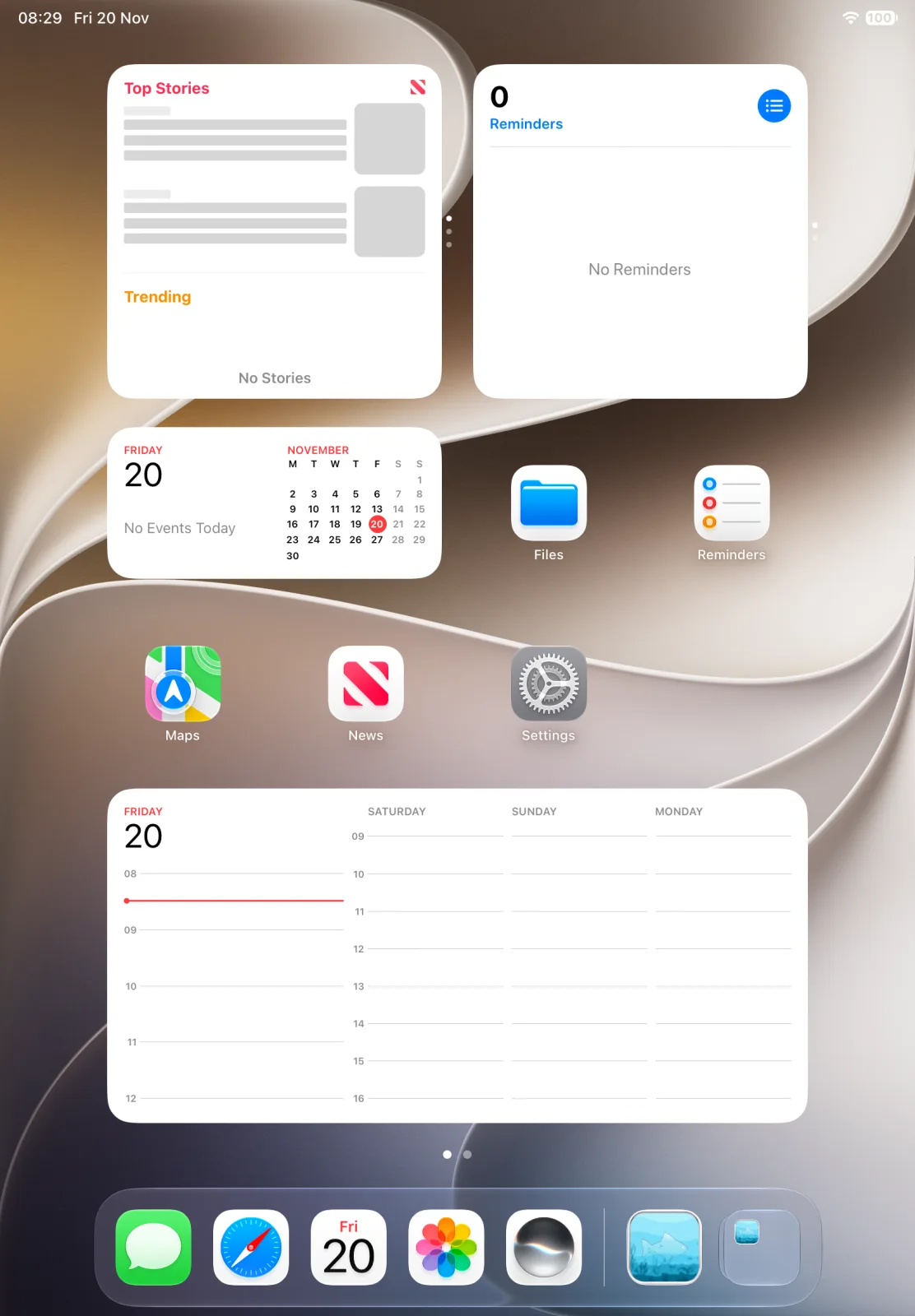
Put Calendar’s extra-large widget across the bottom half of the first page and a Reminders widget above it. The rest of the page holds four to six apps you use for school or work. To add the widget, touch and hold the background, tap the edit button, tap Add Widget and swipe to the largest Calendar size, as in Apple’s iPad widget guide ↗.
2. Minimal: one widget and a clear look
Keep a single medium widget, such as Weather or Photos, and no more than one row of apps. Open the edit menu, tap Customize and choose Clear for translucent icons. Apple’s customization guide ↗ also lists a large-icon option that hides app names, which suits a page with very few apps. Move everything else to the Dock or a second page. Our minimalist Home Screen guide walks through the same idea on iPhone.
3. Dark desk and 4. One color
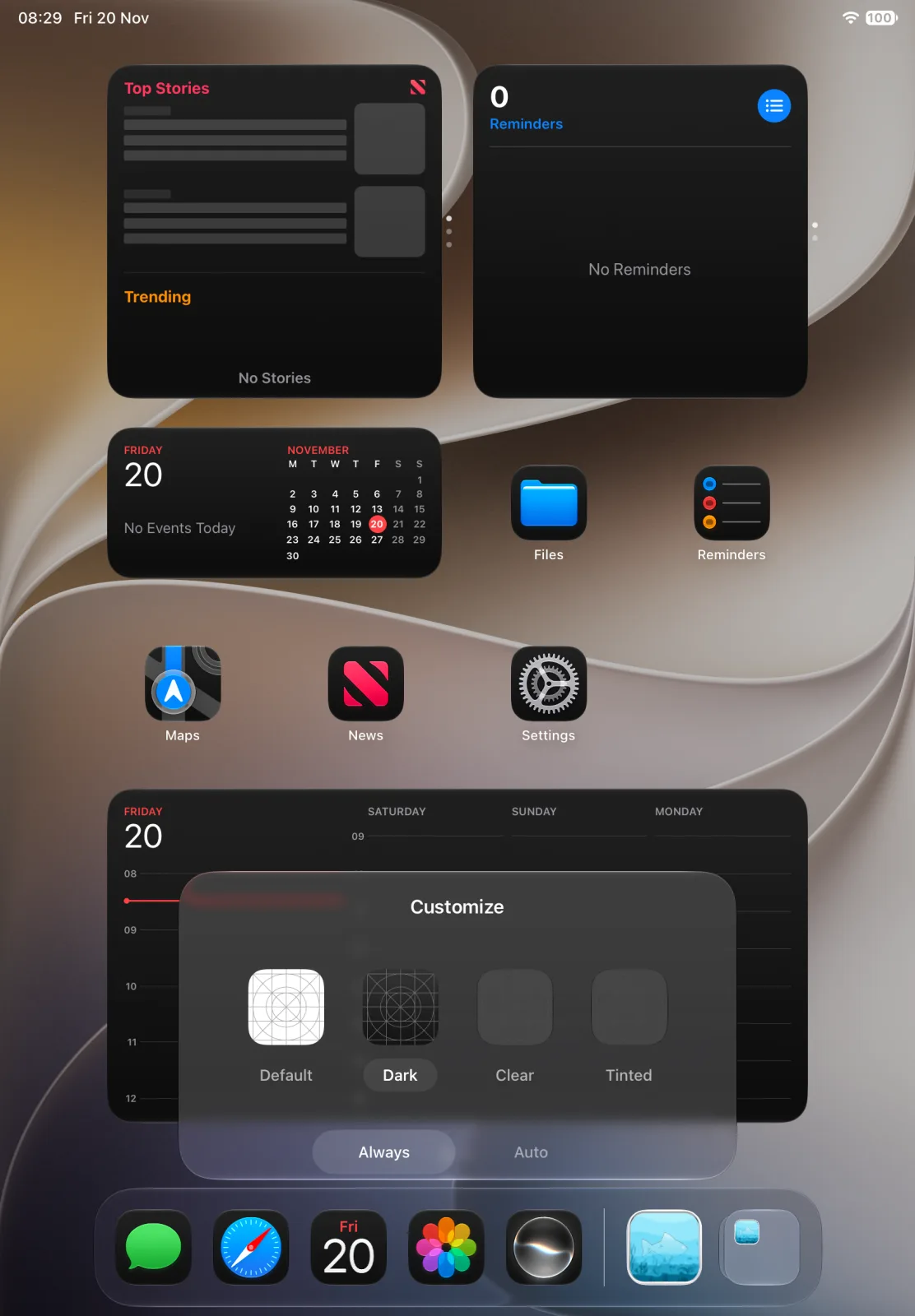
For evenings, choose Dark in Customize. Apple’s widgets and icons switch to dark backgrounds, and Auto makes them light during the day and dark at night, according to Apple ↗. Line up two or three large widgets in a row so the page reads like a desk.
For a single color, choose Tinted and set the color with the sliders, or use the eyedropper to pick a shade from your wallpaper. A beige or sage wallpaper with a matching tint keeps the whole page soft and calm.
5. Aquarium: a living centerpiece
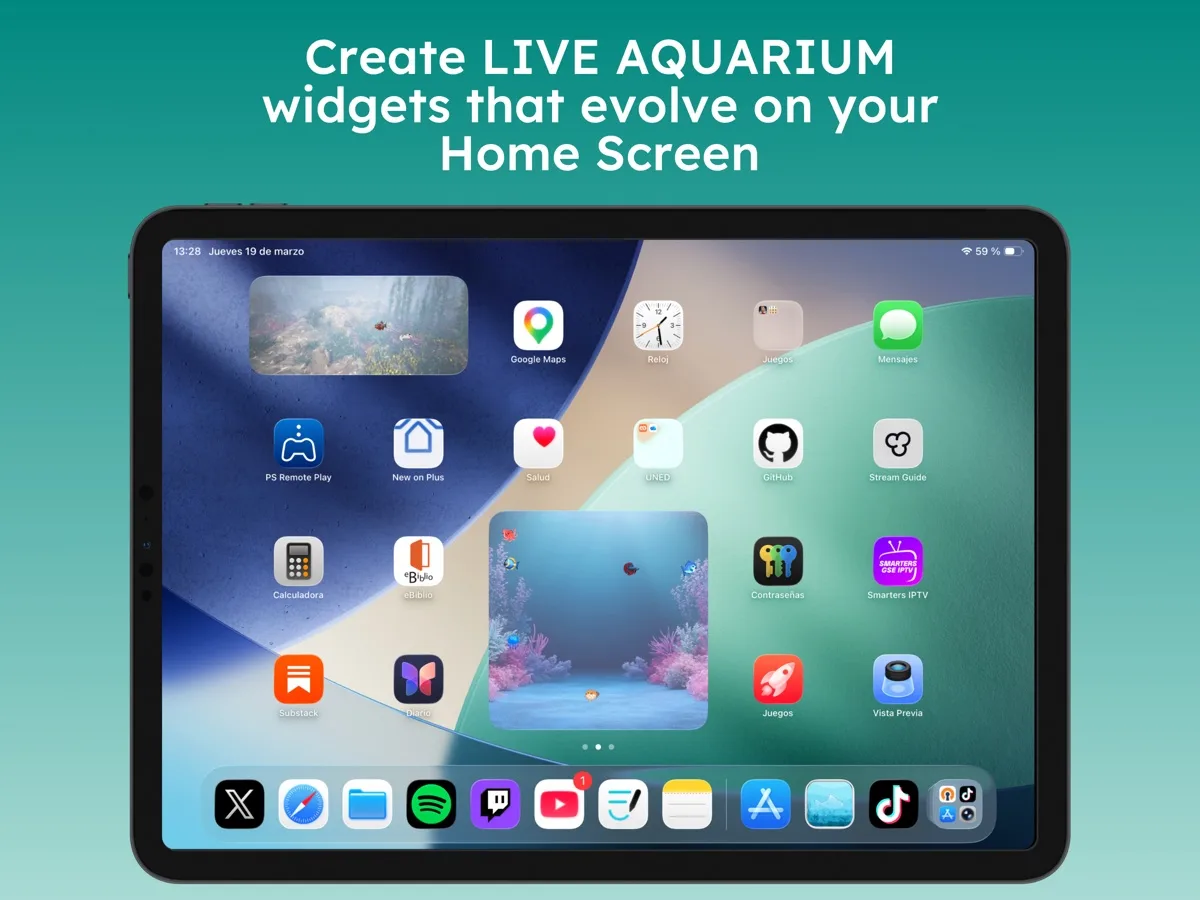
Aquarium Widgets is our app. Since version 1.8.2 it has a Panoramic aquarium made for the wide extra-large iPad widget, with room for up to 14 fish and an optional clock, date or calendar behind them, according to its App Store notes ↗. Place it at the top of the first page and keep two rows of apps below it. The app is free to download; putting an aquarium on your Home Screen requires the premium upgrade, sold as a subscription or a one-time purchase.
Tips that work with any layout
- Hide extra pages: the edit menu includes Edit Pages, where you can uncheck pages you don’t need, as on iPhone.
- Stack small widgets: a Smart Stack holds several widgets in one spot.
- Check both orientations: turn the iPad sideways to see whether your big widget still sits where you want it.
For the steps behind each layout, read our guide to iPad widgets. More style ideas, most of which also work on iPad, are in aesthetic Home Screen ideas.
Frequently asked questions
How do I make my iPad Home Screen look aesthetic?
Pick one main widget, a calm wallpaper and a single Customize setting such as Clear or Tinted, then move rarely used apps off the first page.
How do I make iPad icons and widgets dark?
Touch and hold the Home Screen, tap the edit button, tap Customize and choose Dark. Auto switches between light and dark with the time of day.
Can I make app icons bigger on iPad?
Yes. The Customize options include large icons, which hide the app names.