Design ideas
iOS 27 Home Screen Ideas: Five Setups Using the New Options
Five iOS 27 Home Screen setups that combine extra-large widgets, the Liquid Glass slider, tinted or clear icons and large icons without labels.
iOS 27 gives you four tools that change the look of a Home Screen fast: extra-large widgets, the Liquid Glass slider, icon styles (Dark, Clear and Tinted) and a larger icon size without labels. The five setups below combine them. Each takes a few minutes and is easy to undo.
What’s new to work with
- Extra-large widgets: a new Home Screen size on iPhone, listed in Apple’s overview of iOS 27 ↗. Only some apps offer it.
- Liquid Glass slider: Settings → Appearance → Liquid Glass moves menus and controls from clear to tinted, per Apple’s display settings guide ↗.
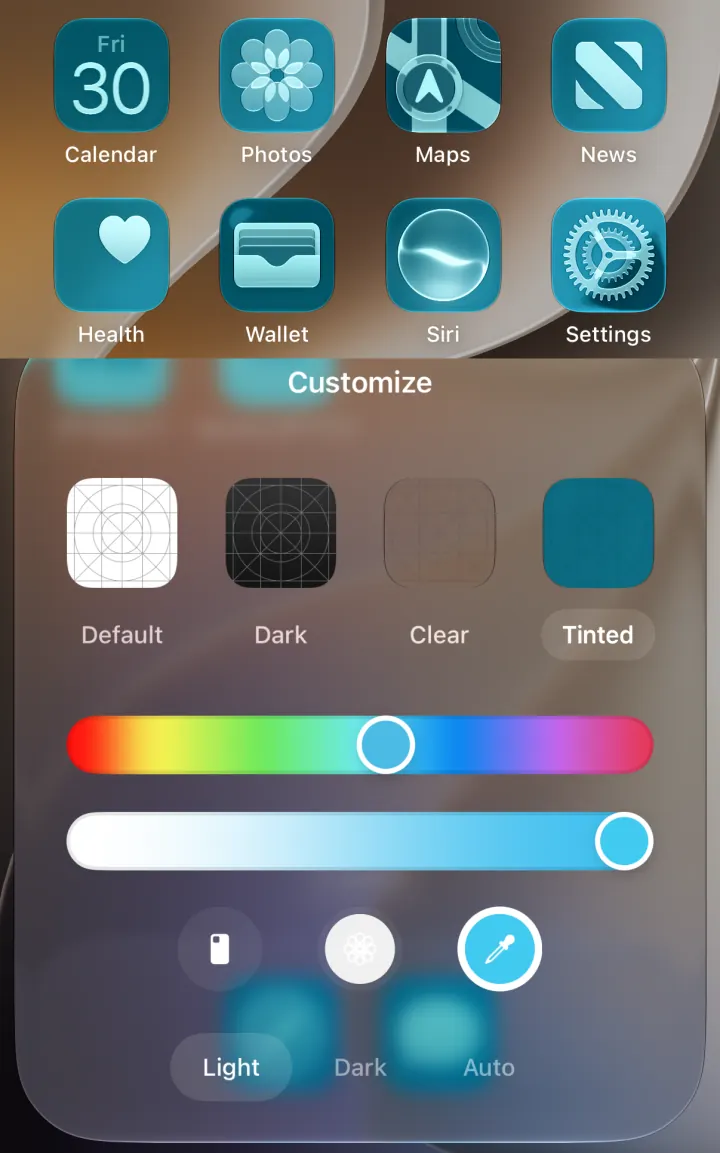
- Icon styles and size: touch and hold the Home Screen, tap Edit, then Customize. Apple’s customization guide ↗ covers Dark, Clear, Tinted and large icons.
Five setups to try
1. One big widget
Put a single extra-large widget on the first page and keep only your most-used apps in the Dock. A calendar, photos or an aquarium works well because it fills the space with something you enjoy looking at. Touch and hold a widget and choose the largest size if the app offers it, as described in Apple’s widget guide ↗.
2. Clear glass over a photo
Choose a calm photo wallpaper, set icons to Clear and move the Liquid Glass slider toward clear. Keep the photo simple, such as sky, water or sand, so labels stay readable. If text gets hard to read, switch the icons to Clear with Dark, or nudge the slider toward tinted.
3. One-color tint
Pick Tinted and use the eyedropper to take a color straight from your wallpaper. A teal or blue tint over an ocean photo gives a coordinated look in seconds. Tinting also applies to widgets, so check that the information in them is still clear.
4. Big icons, no labels
Turn on the large icon size in Customize. App names disappear, so this works best with a short list of apps you recognize by shape and color. Pair it with a plain color wallpaper from the wallpaper gallery, following Apple’s wallpaper guide ↗.
5. Day and night
Set icons to Dark with Auto, so they switch to the dark look at night. Add a wallpaper with a dark version and a medium clock or calendar widget. The screen feels softer in the evening without any manual changes.
Keep it usable
Leave your daily apps in the same spots whichever look you choose. Use a second page or a widget stack for the rest. If an idea doesn’t work for you, open Customize and choose Default, or set the Liquid Glass slider back to the middle.
If you want a living centerpiece for the first setup, Aquarium Widgets (our app) has an extra-large aquarium on iOS 27 with room for up to 12 fish. The app is free to download; showing any aquarium on the Home Screen requires its premium upgrade (subscription or one-time purchase).
For more on each tool, read iOS 27 extra-large widgets, the Liquid Glass slider and how to change app icons.
Frequently asked questions
What’s new for the Home Screen in iOS 27?
Extra-large widgets on iPhone and a Liquid Glass slider in Settings → Appearance, alongside the Dark, Clear and Tinted icon styles.
How do I make my iOS 27 Home Screen look clean?
Keep one large widget on the first page, use a simple wallpaper and turn on large icons, which hide app names.
How do I make icons match my wallpaper?
In Customize, choose Tinted and use the eyedropper to pick a color from your wallpaper.
Which iPhones can use these ideas?
Any iPhone that runs iOS 27, which starts with iPhone 11 and iPhone SE (2nd generation).