Step-by-step guide
iOS 27 Liquid Glass Slider: How to Make It Clearer or More Tinted
Find the new Liquid Glass slider in Settings → Appearance, choose between clear and tinted, and fix it when the slider can’t be changed.
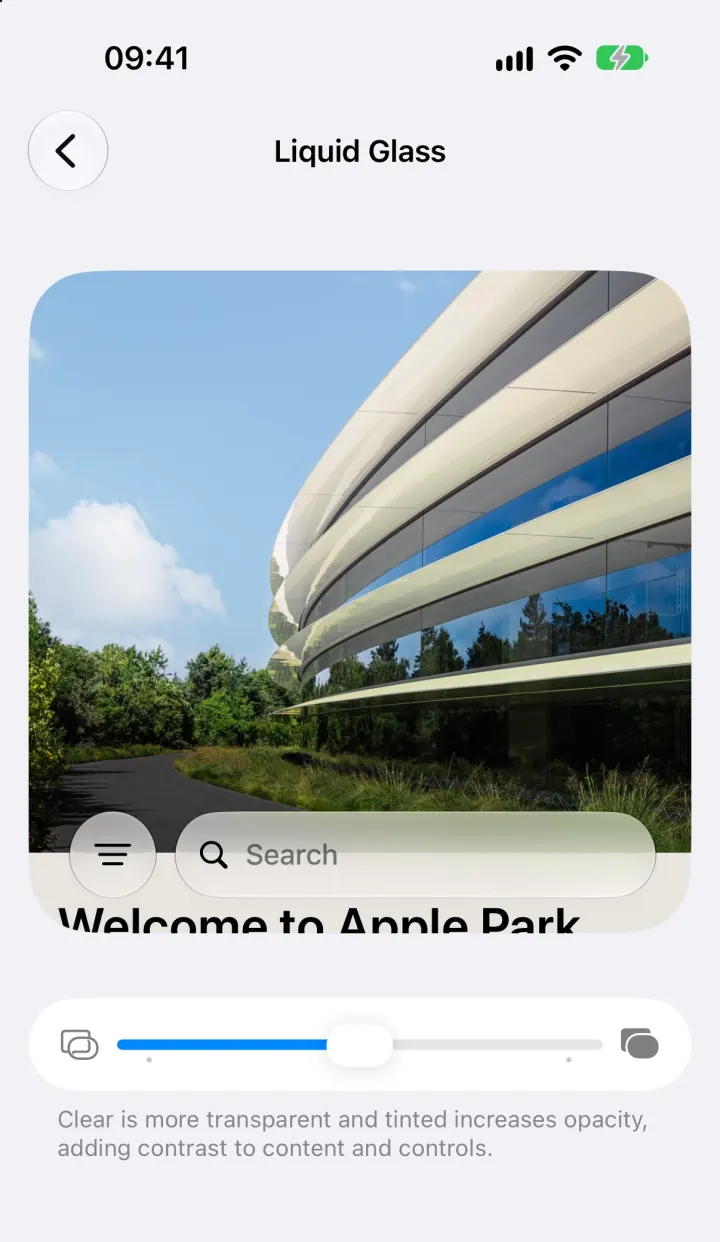
On iOS 27, go to Settings → Appearance → Liquid Glass and drag the slider. Move it right for a more tinted, opaque look with more contrast, or left for clearer glass. The change applies across the system right away, and you can move it back at any time.
Where the Liquid Glass setting is
Liquid Glass is the translucent material Apple uses for menus, tab bars, buttons and other controls. iOS 27 added a slider for it, listed in Apple’s overview of what’s new in iOS 27 ↗ as ranging “from ultraclear to fully tinted.”
- Open Settings.
- Tap Appearance, then Liquid Glass.
- Drag the slider. A preview at the top of the screen shows the result before you leave.
These steps match Apple’s display and text settings guide ↗. If you haven’t changed it, the row reads Default and the slider sits in the middle.
Clear or tinted: which to choose
The description under the slider says clear is more transparent, while tinted increases opacity and adds contrast to content and controls. In practice:
- Toward clear: controls show more of the wallpaper or photo underneath. This suits simple, low-detail wallpapers where text stays easy to read.
- Toward tinted: menus and bars look more solid. Try this if text over busy photos is hard to read or if the glass effect distracts you.
- In the middle: the default balance, which adapts to the content beneath.
Test your choice on the screens you use most, such as Messages, Safari and the Home Screen with your usual wallpaper, then adjust in small steps.
If the slider doesn’t work
Apple notes that you can’t change the Liquid Glass look while Reduce Transparency or Increase Contrast is on in Accessibility settings. Turn those off first if you want to use the slider. If you turned them on for readability, it may be better to keep them, since they are designed for that purpose.
The slider has no separate “off” position. Its two ends are the most transparent and the most tinted looks available.
Liquid Glass vs Clear app icons
The slider and the Home Screen icon styles are separate settings. The Clear style that makes app icons translucent lives in the Home Screen’s Customize menu, described in Apple’s guide to customizing apps and widgets ↗. You can combine a tinted Liquid Glass with clear icons, or the other way around.
To change icons, follow our guide on how to change app icons on iPhone. For complete layouts that use these settings, see iOS 27 Home Screen ideas.
Frequently asked questions
Where is the Liquid Glass setting in iOS 27?
Open Settings, tap Appearance, then Liquid Glass, and drag the slider.
Can I turn off Liquid Glass?
The slider has no off position. Moving it all the way to tinted gives the most opaque look.
Why can’t I change the Liquid Glass slider?
Apple says Reduce Transparency and Increase Contrast must be off in Accessibility settings before you can change it.
Does the slider change my app icons?
Icon styles are a separate setting. Use Customize on the Home Screen to make icons Clear, Dark or Tinted.