Step-by-step guide
How to Change App Icons on iPhone: Built-In Styles and Custom Icons
Switch every icon to Dark, Clear or Tinted in iOS 27, or give one app your own picture with a Shortcuts icon and hide the original from the Home Screen.
To change every app icon at once, use the Customize menu on the Home Screen and pick Dark, Clear or Tinted. To give one app a picture of your own, create a shortcut that opens it and add that shortcut to the Home Screen with a photo as its icon. Both methods are built into iOS and need no extra app.
Change the style of all icons
On iOS 27, Home Screen icons can switch between a few looks without replacing the artwork. The steps below follow Apple’s guide to customizing apps and widgets ↗.
- Touch and hold the Home Screen background until the icons jiggle.
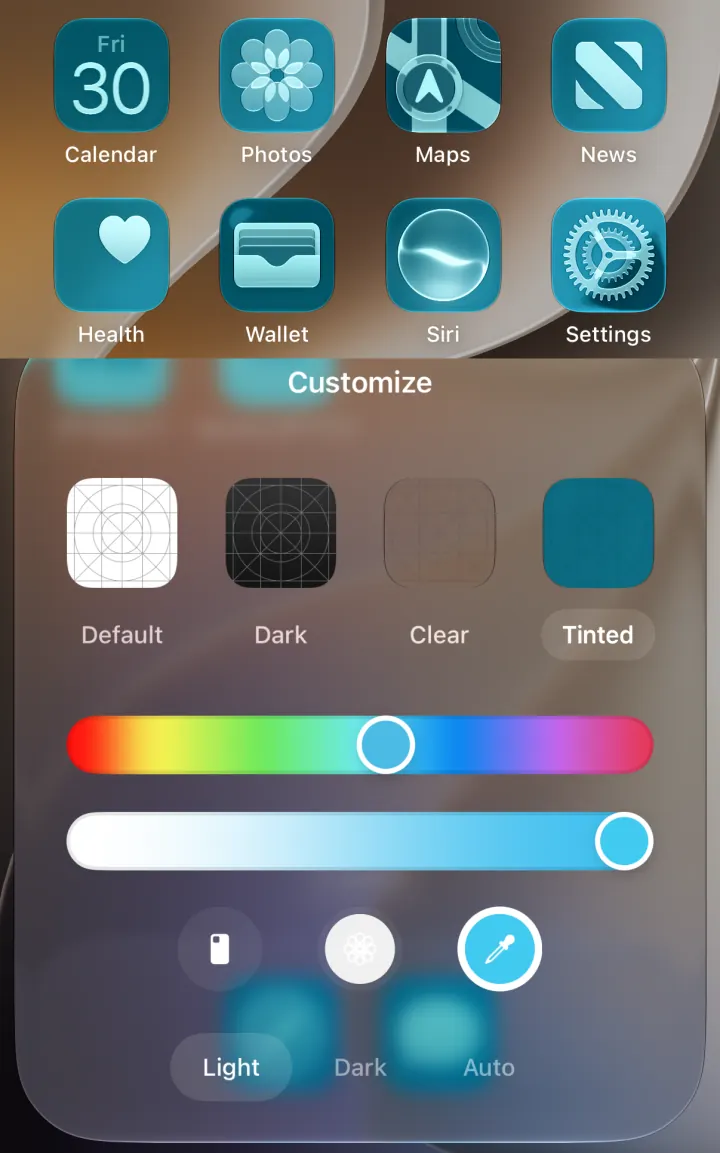
- Tap Edit in the top-left corner, then choose Customize.
- Pick a style:
- Dark: dark icons and widgets. Choose Auto to use the light look during the day and the dark one at night.
- Clear: translucent icons that let the wallpaper show through, in Light, Dark or Auto.
- Tinted: one color for every icon. Use the sliders for color and saturation, or the eyedropper to pick a color from your wallpaper.
- Tap the Home Screen background to close the menu.
The same menu has a button for larger icons. In large size, app names disappear, which suits a minimal layout but makes similar icons harder to tell apart. To undo everything, open Customize again and choose Default.
Use your own image for one app
iOS does not let you replace another app’s icon directly. The common workaround is a shortcut that opens the app, placed on the Home Screen with your image. Have the picture ready in Photos or Files first.
- Open Shortcuts, tap + and tap Add Action, as described in Apple’s guide to creating a shortcut ↗.
- Search for the Open App action, add it and choose the app.
- Open the shortcut’s details and tap Add to Home Screen.
- Tap the icon under Home Screen Name and Icon, then choose Take Photo, Choose Photo or Choose File.
- Tap the name to rename it, for example with the app’s real name, then tap Add.
Steps 3 to 5 are from Apple’s guide to adding a shortcut to the Home Screen ↗. Labels can differ slightly on older versions of iOS.
Hide the original icon
Your new icon sits next to the real one. To keep only yours, touch and hold the original app, tap Remove App, then Remove from Home Screen. The app moves to App Library and is not deleted, according to Apple’s guide to removing apps ↗. Avoid Delete App, which removes the app and its data.
Other options and limits
- Icons inside the app: some apps offer alternate icons in their own settings. Developers add these following Apple’s documentation on alternate app icons ↗, so the choice depends on each app.
- Icon theme apps: some App Store apps offer full icon packs. Read how the app installs them before you start, since replacing dozens of icons takes time to undo.
- Only on the Home Screen: the custom image belongs to the shortcut you added. The app keeps its own icon in App Library and in search.
For apps that help with icons, widgets and themes, see our guide to iPhone customization apps. To build a full layout around the new icons, read iOS 27 Home Screen ideas or the Home Screen customization guide.
Frequently asked questions
How do I change app icon colors on iPhone?
Touch and hold the Home Screen, tap Edit, then Customize, and choose Tinted. Pick a color with the sliders or the eyedropper.
Can I change app icons without Shortcuts?
You can change the style of all icons in the Customize menu, and some apps offer alternate icons in their own settings. A picture of your own for any app needs a shortcut.
Will removing the original icon delete the app?
No. Remove from Home Screen moves the app to App Library. Only Delete App removes the app and its data.
How do I go back to the normal icons?
Open Customize and choose Default. Delete any icon shortcuts you added and drag the original apps back from App Library.