Step-by-step guide
Today View on iPhone: Open It, Edit Widgets and Hide It When Locked
Open Today View, add, resize and remove its widgets on iOS 27, turn it off on the Lock Screen and fix it when it won’t open.
Today View is the column of widgets you see when you swipe right from the left edge of your first Home Screen page. You can add, remove, resize and reorder widgets there the same way you do on the Home Screen. iOS has no switch to remove Today View itself, but you can hide it while your iPhone is locked.
Open Today View
Go to your first Home Screen page and swipe right from the left edge, then scroll up and down to see every widget, as Apple’s iOS 27 widget guide ↗ describes. It also opens from the Lock Screen with the same swipe, unless you turned that off (see below).
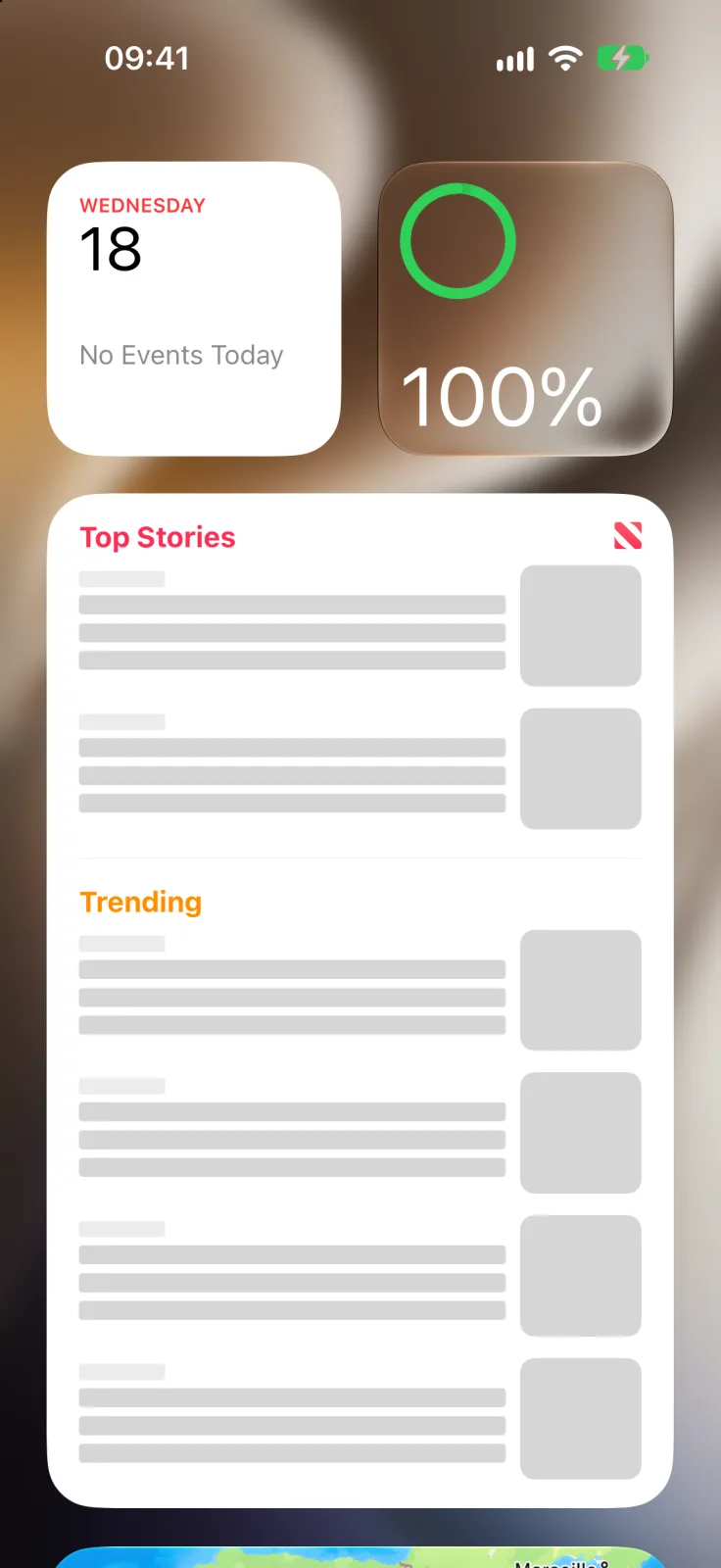
Today View is a good place for widgets you check often but don’t want taking up room among your apps: battery levels, the next calendar event, headlines or a Smart Stack that rotates through several of them.
Add, remove and rearrange widgets
- Open Today View and touch and hold an empty area until the widgets jiggle.
- To add one, tap the button at the top left, then tap Add Widget. Pick a widget, swipe through its sizes and tap Add Widget again.
- To remove one, tap the minus button in its corner.
- To move one, drag it up or down the column. To change its size on iOS 27, drag the handle at its bottom-right corner.
- Tap the checkmark at the top right when you’re done.
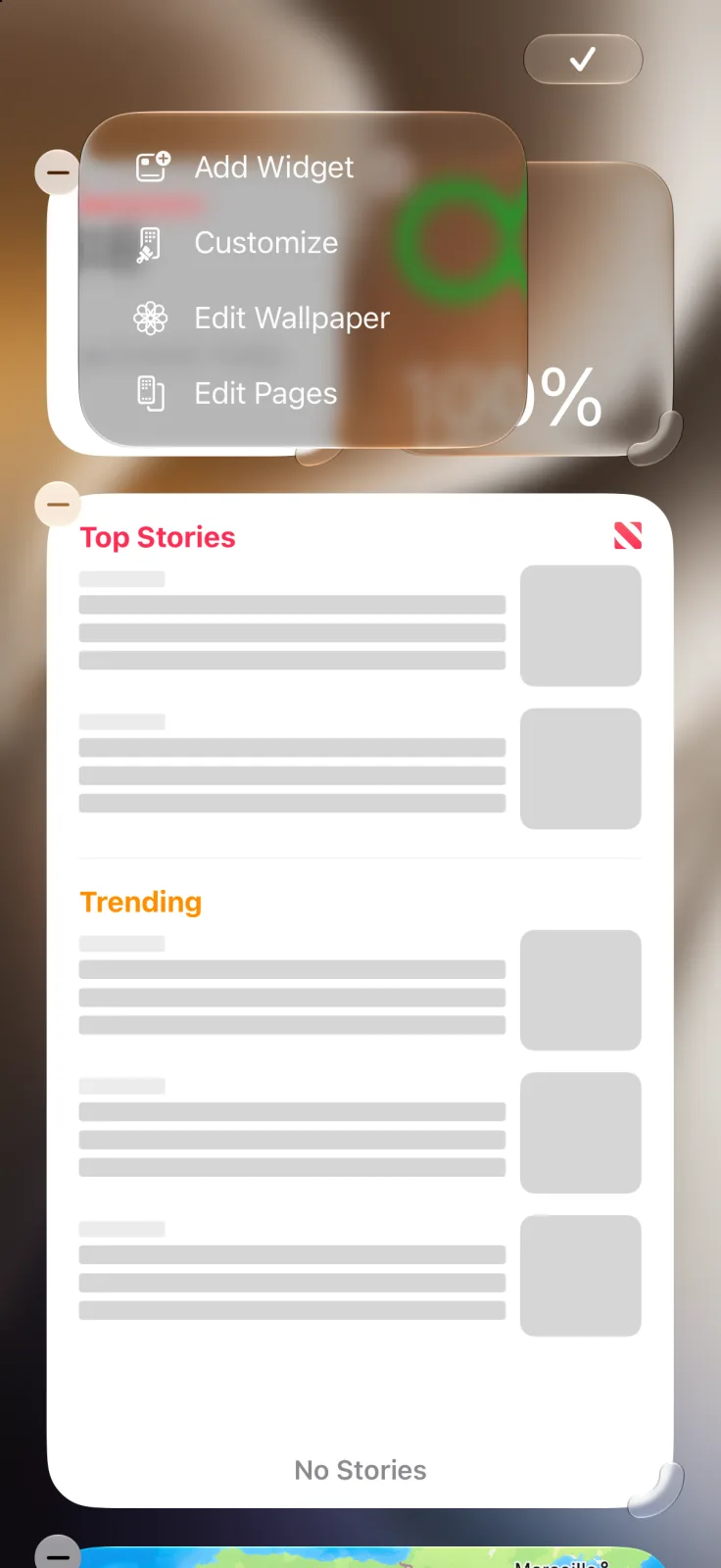
To change what a widget shows, such as the mailbox in a Mail widget, touch and hold it and tap Edit Widget. Apple’s guide covers this step for Home Screen widgets, and it works the same way in Today View.
Turn off Today View on the Lock Screen
If you don’t want anyone to see your widgets without unlocking your iPhone, follow Apple’s steps ↗:
- Open Settings.
- Tap Face ID & Passcode (or Touch ID & Passcode on iPhone Duo and iPhone SE) and enter your passcode.
- Under Allow Access When Locked, turn off Today View and Search.
Once your iPhone is unlocked, Today View still opens from the Home Screen. To make it almost empty, remove all its widgets.
Today View not working?
| What happens | What to try |
|---|---|
| Swiping right does nothing | Go to your first Home Screen page. Today View is only to the left of page one. |
| It won’t open from the Lock Screen | Turn on Today View and Search in Face ID & Passcode. |
| A widget is blank or gray | Open its app once, then see iPhone widget not showing. |
| A widget is gone | It may be lower in a Smart Stack, or its app was removed. See widgets that disappeared. |
To put a widget among your apps instead, follow our guide to adding widgets to the Home Screen. To see how the Home Screen, Lock Screen and Today View compare, read Home Screen vs Lock Screen widgets.
Frequently asked questions
What is Today View on iPhone?
It is a scrolling column of widgets to the left of your first Home Screen page. Swipe right from the left edge of page one to open it.
Can I turn off Today View on iPhone?
There is no setting to remove it from the Home Screen. You can turn it off while the iPhone is locked under Face ID & Passcode, and remove its widgets.
How do I add widgets to Today View?
Touch and hold an empty area in Today View, tap the button at the top left, then Add Widget, and pick a widget and size.
Why can’t I open Today View?
Make sure you are on the first Home Screen page. On the Lock Screen, check that Today View and Search is on under Allow Access When Locked.