Troubleshooting
iPhone Widgets Disappeared? Where They Go and How to Get Them Back
Find widgets lost to a hidden Home Screen page, a Focus, an offloaded or deleted app, or a widget turned back into an icon, and restore each one.
When widgets vanish from an iPhone Home Screen, the page they were on is usually hidden, a Focus is showing a different page, or the widget was removed, turned back into an app icon or lost with its app. Only deleting the app removes its data. Find your symptom below, then follow the matching fix.
Match the symptom to the cause
| What you see | Likely cause | Fix |
|---|---|---|
| A whole page of widgets is gone | The page is hidden | Show it again in Edit Pages (below) |
| Widgets change when Do Not Disturb or Work is on | A Focus switches to another Home Screen page | Change the page linked to that Focus |
| An app icon sits where the widget was | The widget was turned back into an icon | Touch and hold the icon and pick a widget size |
| The app icon has a small cloud | The app was offloaded to save space | Tap the icon to reinstall, then add the widget again |
| Both the app and its widget are gone | The app was deleted | Reinstall it from the App Store |
| The widget shows up some of the time | It is inside a Smart Stack | Swipe through the stack or use Edit Stack |
| Folders are gone and apps are sorted alphabetically | The Home Screen layout was reset | Rebuild the layout and add any missing widgets |
Show a hidden Home Screen page
Hiding a page hides every widget on it. Apple’s App Library guide ↗ explains how to bring it back:
- Touch and hold the Home Screen background until the apps jiggle.
- Tap the dots at the bottom of the screen. On iOS 27 you can also tap Edit, then Edit Pages.
- Tap the circle under any page that has no checkmark.
- Tap Done.
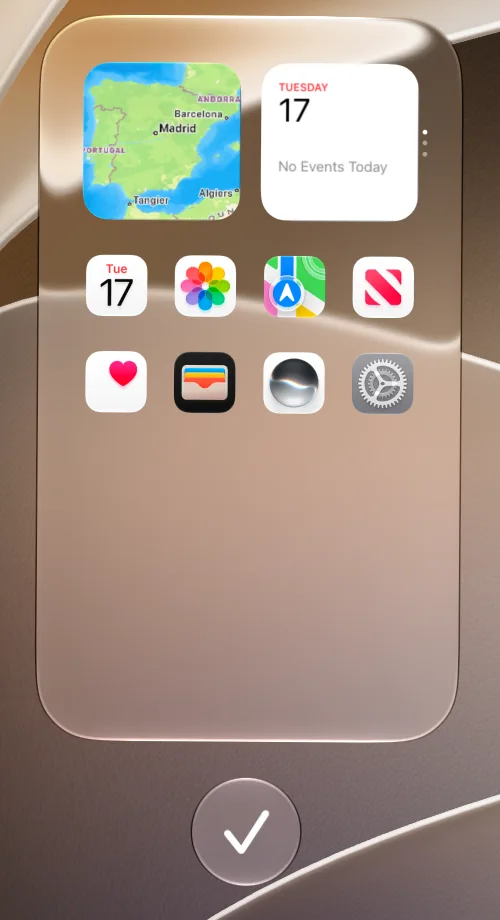
If the widgets only disappear at certain times of day, check your Focus settings. Apple’s Focus guide ↗ lets each Focus switch to a chosen Home Screen page. Our Focus Home Screen guide walks through those settings.
A widget turned into an app icon
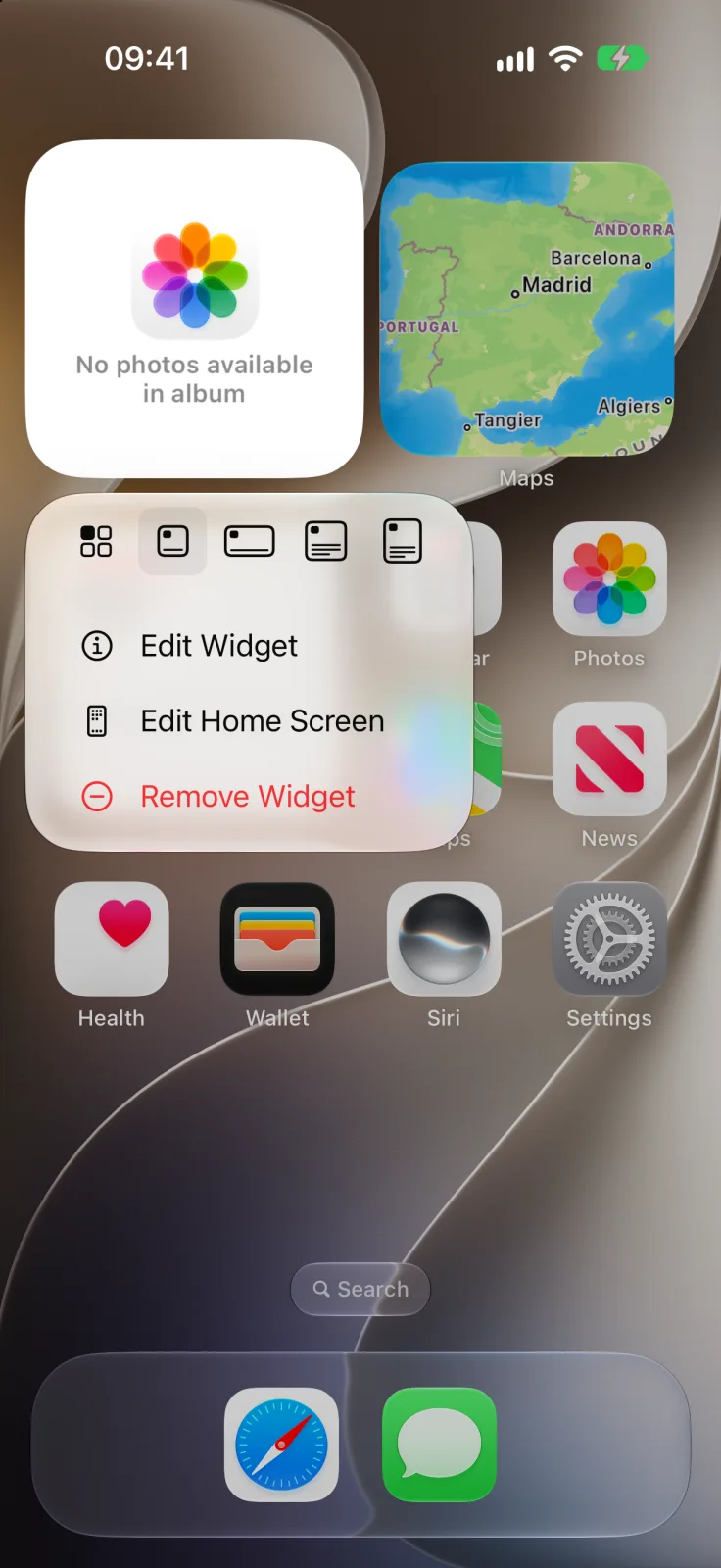
On iOS 27 the same menu that resizes a widget can also turn it back into an app icon, so one slip is enough. Touch and hold the icon and tap one of the size icons in the menu to make it a widget again, as described in Apple’s widget guide ↗.
Removed, offloaded or deleted
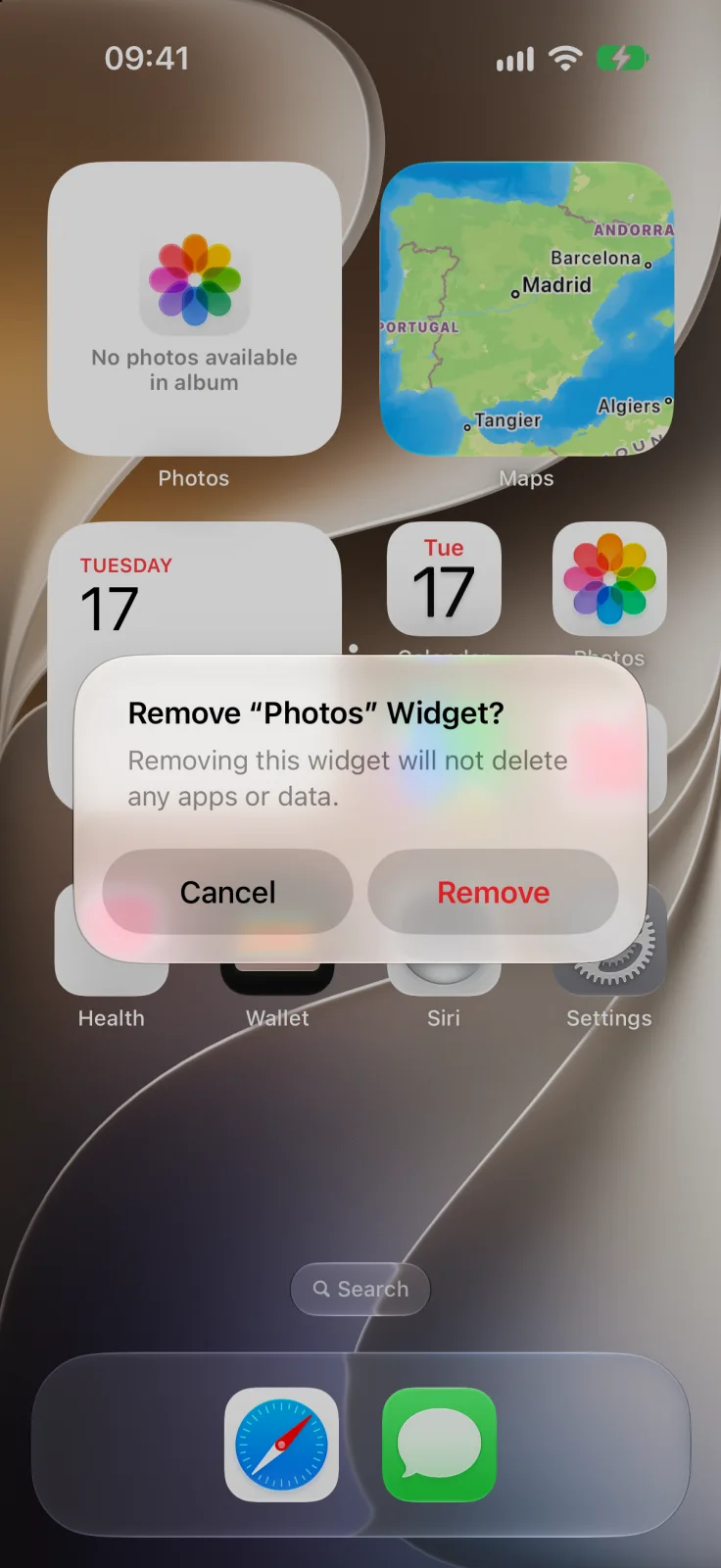
If you tapped Remove Widget by accident, the app and its data are still there. Add the widget again from the gallery and pick its options again if it had any.
When storage runs low, iPhone can offload unused apps: the icon stays with a cloud symbol and you tap it to reinstall. This happens only if Offload Unused Apps is on in Settings → Apps → App Store, per Apple’s storage guide ↗. A deleted app can be downloaded again from Apps & Purchase History in the App Store, following Apple’s guide to removing apps ↗. In both cases, open the app once before adding its widget.
Finally, Reset Home Screen Layout in Settings → General → Transfer or Reset iPhone → Reset removes your folders and sorts downloaded apps alphabetically, according to Apple’s guide to moving apps ↗. If your layout looks like that, rebuild it and add back any widget that is missing.
If the widget is still there but blank or missing from the gallery, see iPhone widget not showing. If it keeps rotating away, our widget stacks guide explains how to control a Smart Stack.
Frequently asked questions
Why did all the widgets on one Home Screen page disappear?
The page is probably hidden. Touch and hold the Home Screen, tap the page dots and add the checkmark under the missing page.
Why do my widgets keep disappearing?
A Focus may be switching to another Home Screen page, or the widget may be inside a Smart Stack that rotates. Check your Focus settings and swipe through the stack.
Does removing a widget delete the app?
No. iOS says removing a widget does not delete any apps or data. You can add it again from the widget gallery.
How do I get a widget back after deleting the app?
Reinstall the app from the App Store, open it once, then add its widget again from the widget gallery.