Home Screen guide
Dark Mode iPhone Home Screen: Make Apps, Icons and Widgets Dark
Turn on Dark Mode in Settings → Appearance on iOS 27, make app icons dark from the Customize menu, and set both to switch automatically at night.
A full dark mode iPhone Home Screen takes two settings: turn on Dark Mode in Settings → Appearance, then set the app icons to Dark in the Home Screen’s Customize menu. Dark Mode alone darkens the system and Apple’s widgets, but app icons on the Default style stay light until you change them.
Turn on Dark Mode on iOS 27
According to Apple’s Dark Mode guide ↗, published for iOS 27:
- Open Settings and tap Appearance.
- Select Dark.
- For a schedule instead, select Automatic and tap Options to choose when it switches.
On versions before iOS 27, the same options are in Settings → Display & Brightness. You can also touch and hold the brightness slider in Control Center and tap Dark Mode.
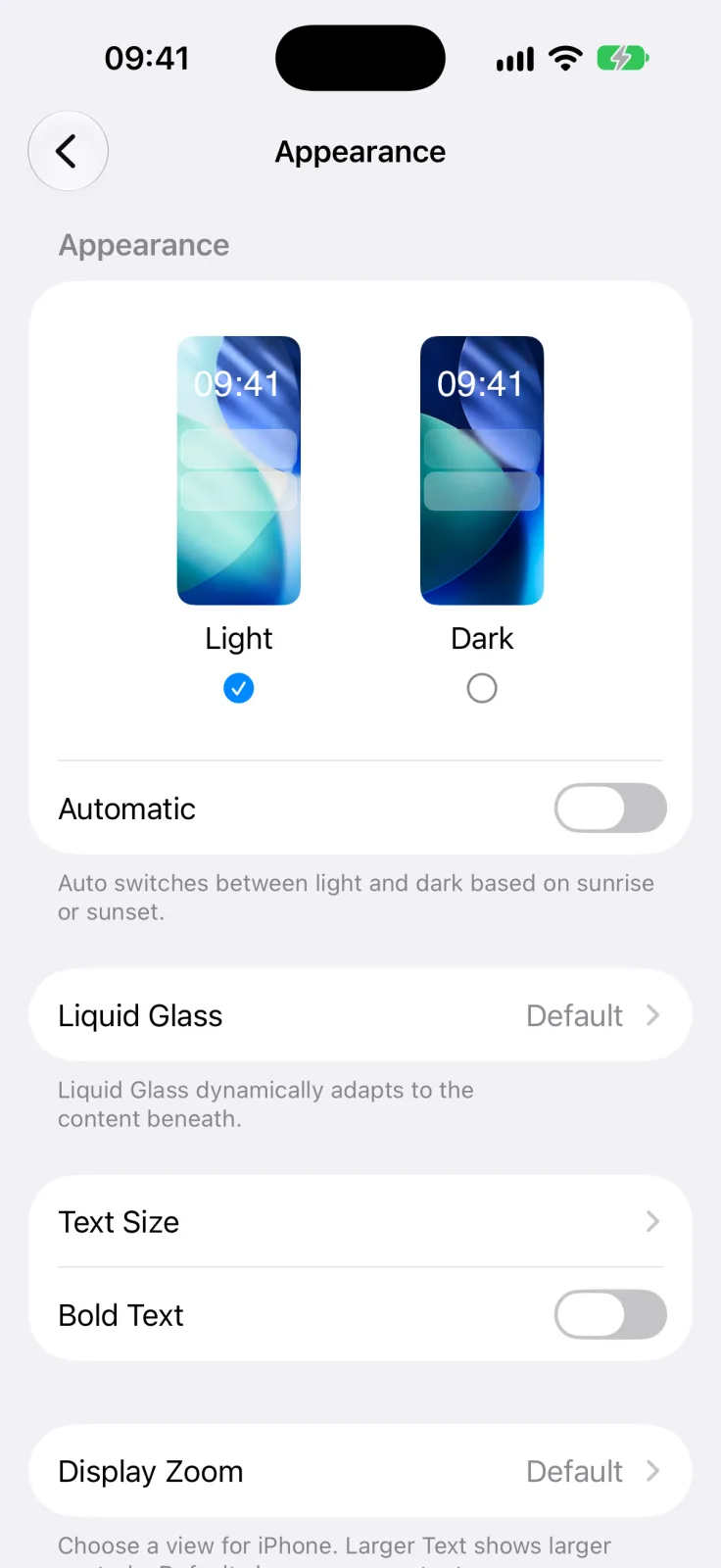
How to make apps dark mode on the iPhone Home Screen
With Dark Mode on, the wallpaper and Apple’s widgets turn dark, but the app icons keep their usual light look. To change the icons as well:
- Touch and hold an empty part of the Home Screen until the apps jiggle.
- Tap the edit button at the top left, then tap Customize.
- Choose Dark, then Always to keep icons dark or Auto to follow the system.
These are the styles described in Apple’s Home Screen customization guide ↗. Picking Auto in both places gives you an automatic light and dark mode Home Screen that switches on its own.
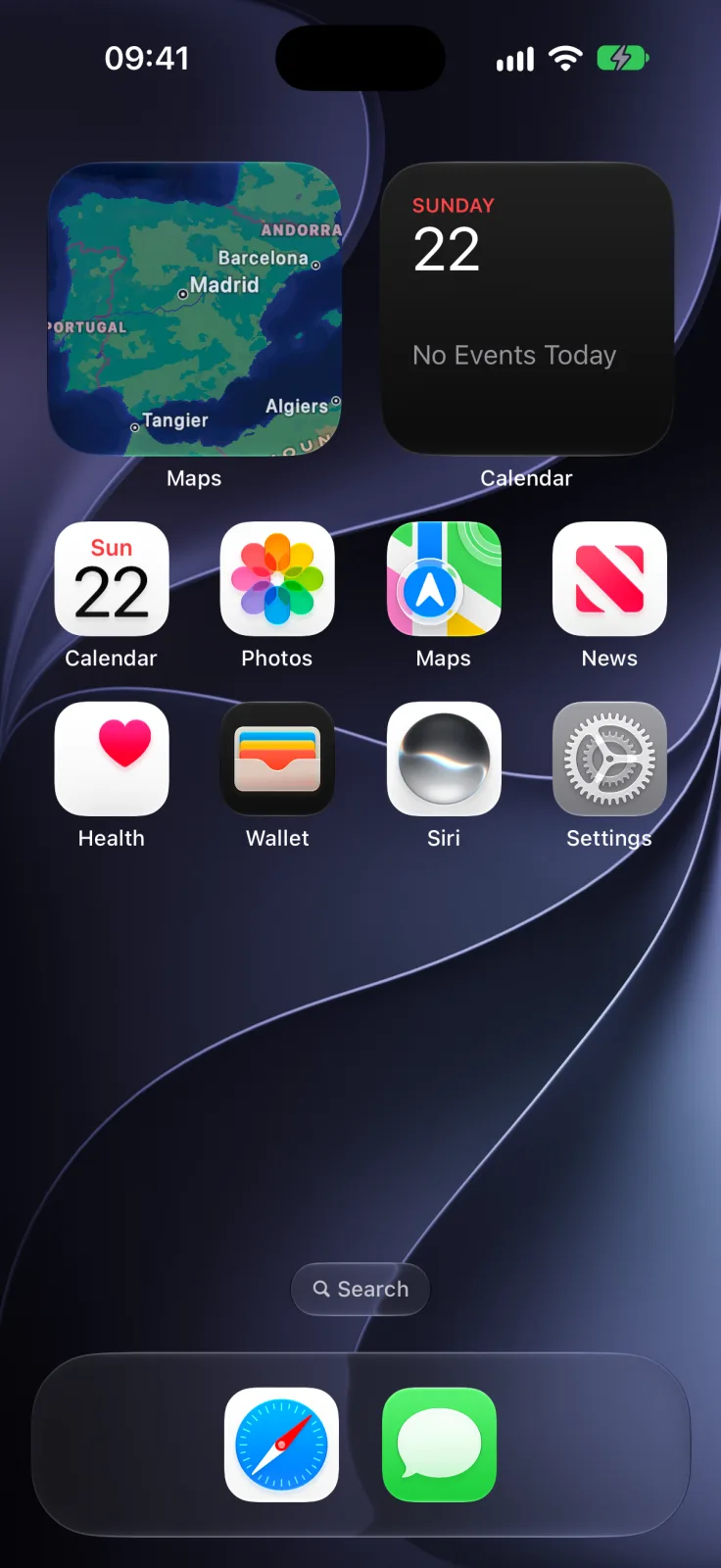
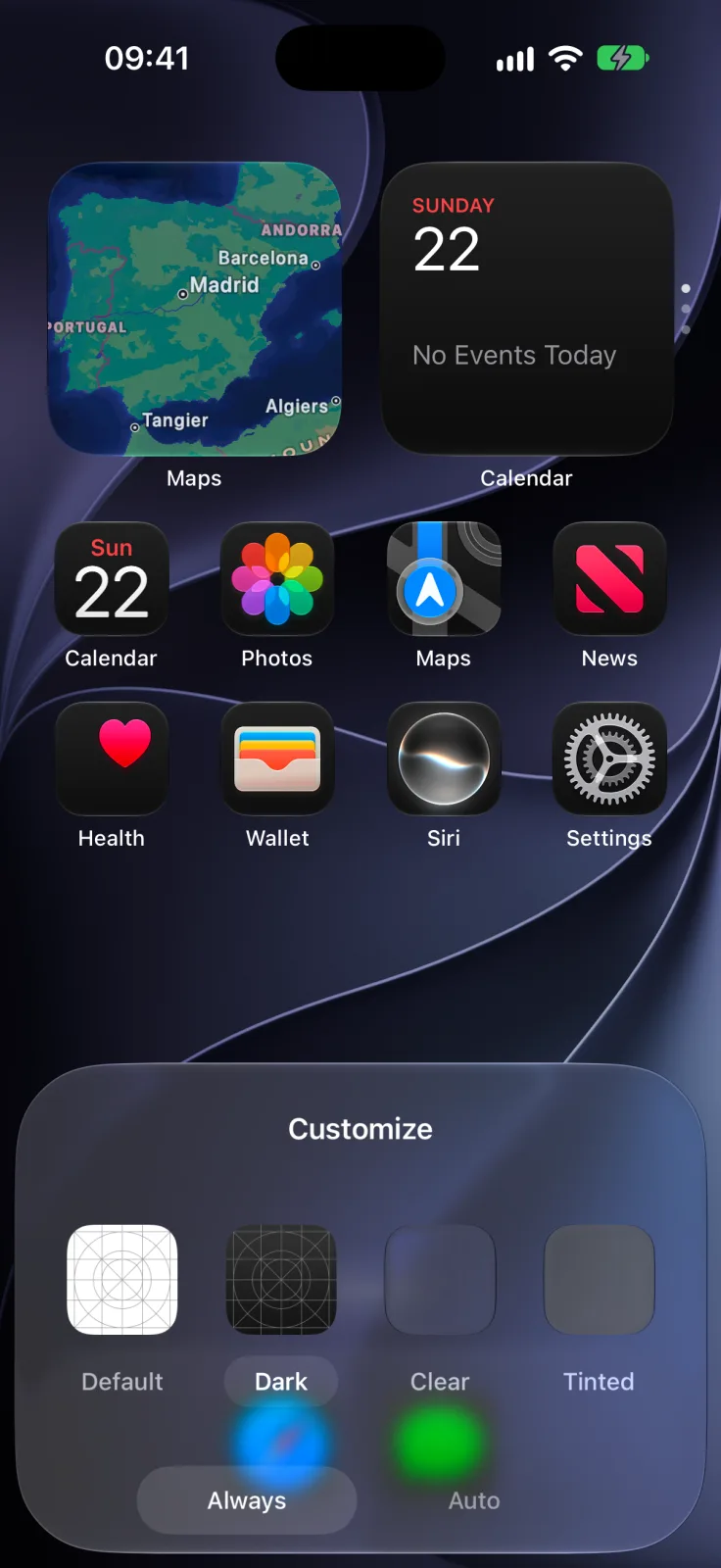
What each setting changes
| Setting | Where | What turns dark |
|---|---|---|
| Dark Mode | Settings → Appearance | Menus, Apple’s apps and widgets, wallpapers with a dark version |
| Dark icon style | Home Screen → Customize | App icons and widgets on the Home Screen |
| Dark wallpaper | Settings → Wallpaper | The background behind everything |
For the darkest result, pick a black or deep navy photo using Apple’s wallpaper steps ↗. Widgets from other apps change only if their developer designed a dark version. If a widget turns into a plain black box instead, see why iPhone widgets turn black.
A dark Home Screen with a calm aquarium
A dark page needs one point of color to look finished. Aquarium Widgets, our app, puts an aquarium with swimming fish on the Home Screen, and its editor lets you add a clock, date or month calendar behind the fish and change their style, color, opacity, size and position. A white clock reads well against a dark layout. The app is free to download; putting an aquarium on your Home Screen requires the premium upgrade, available as a subscription or a one-time purchase. Get it from the App Store ↗ or read more on our home page.
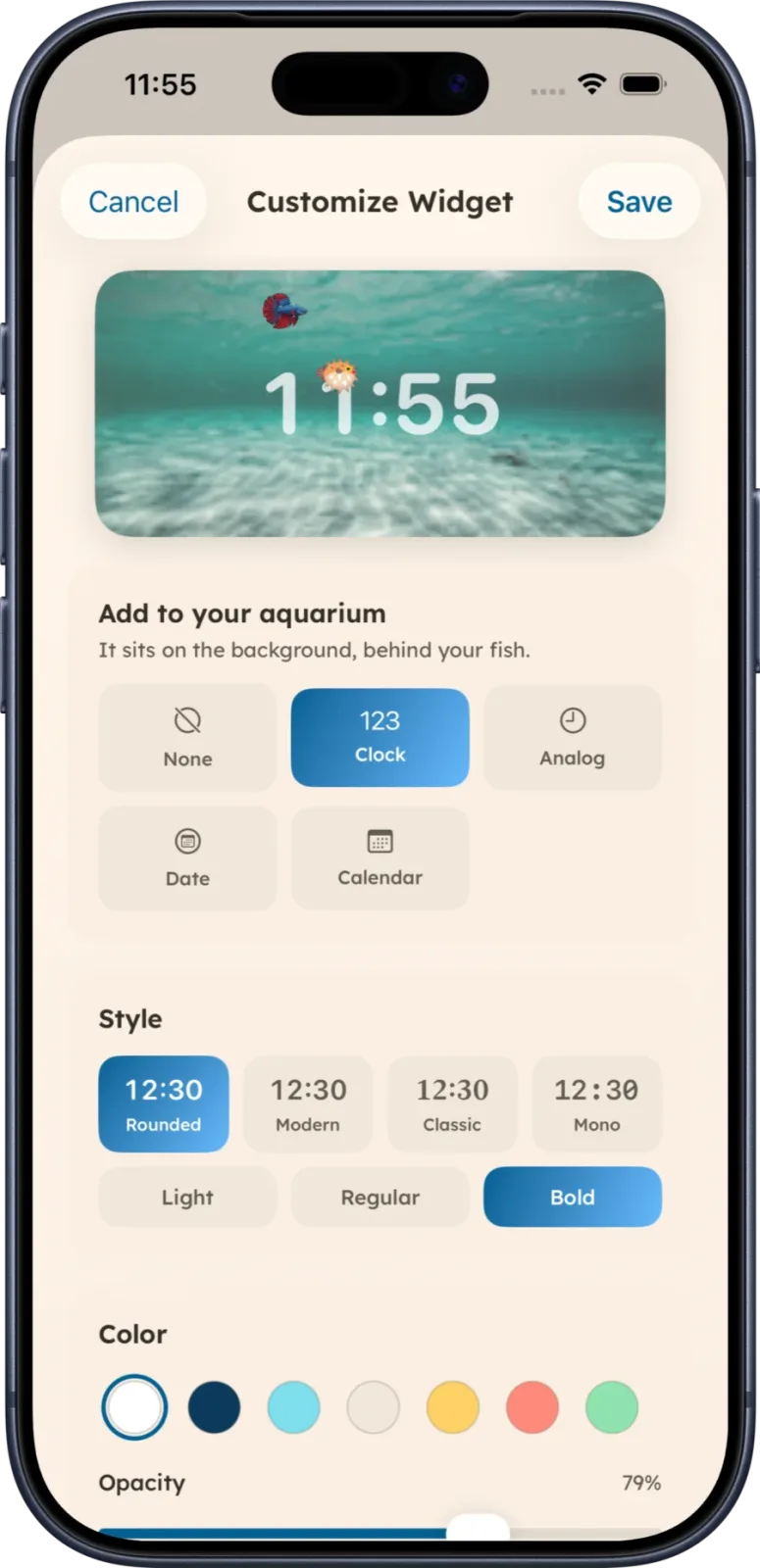
For more layouts, see our minimalist Home Screen ideas and the dark and simple layouts.
Frequently asked questions
How do I make my iPhone Home Screen dark?
Turn on Dark Mode in Settings → Appearance, then touch and hold the Home Screen, tap the edit button, tap Customize and choose Dark for the app icons.
Why are my app icons still light in Dark Mode?
Dark Mode does not change icons on the Default style. Choose Dark in the Home Screen Customize menu to make them dark.
Can my iPhone switch between light and dark automatically?
Yes. In Settings → Appearance select Automatic and tap Options to set a schedule. Choose Auto for the icon style too so the Home Screen follows.
Why can’t I find Dark Mode in Display & Brightness?
iOS 27 moved the Dark Mode options to Settings → Appearance. Display & Brightness is where they are on earlier versions of iOS.