Design ideas
Blue Aesthetic iPhone Home Screen: Navy, Light Blue and Ocean Ideas
Four blue Home Screen looks with the wallpaper, Tinted icon setting and widgets for each, plus how to make blue icons and widgets on iOS 27.
A blue aesthetic iPhone Home Screen comes down to three things: a blue wallpaper, app icons tinted the same blue, and two or three widgets that match. iOS 27 does most of it with the Tinted style in the Customize menu, so you only need a widget app if you want custom colors or photos.
Four blue aesthetic Home Screen ideas
Choose one shade and use it everywhere. Mixing navy icons with a sky blue wallpaper looks unplanned.
| Look | Wallpaper | Icons | Widgets |
|---|---|---|---|
| Navy | Deep blue photo or a dark Color wallpaper | Tinted, dark blue, Dark appearance | Calendar and a clock |
| Light blue | Sky, sea glass or a pale gradient | Tinted, lighter strength, Light appearance | One photo widget |
| Dark blue night | Night sky or city lights | Tinted blue with Auto | Weather and Batteries |
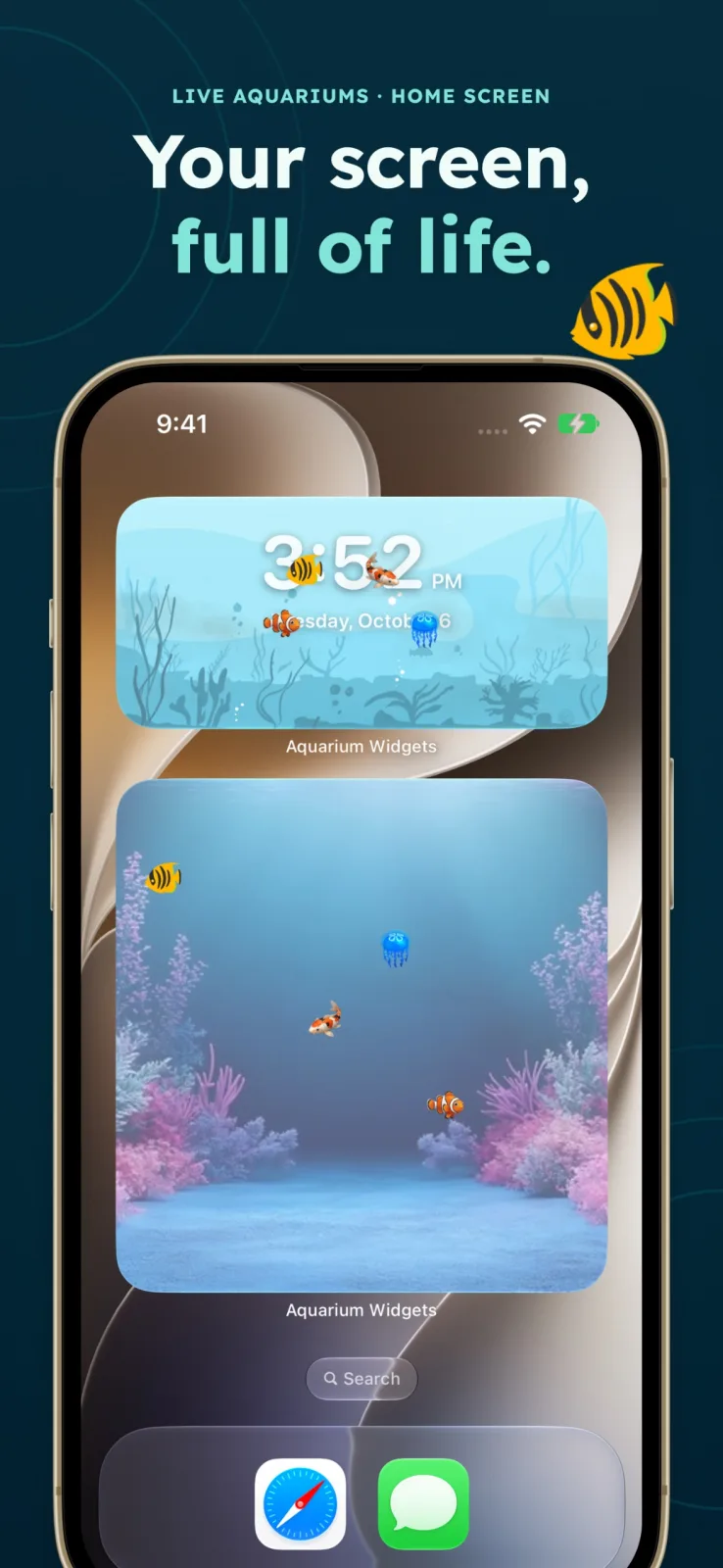
| Ocean | Waves, a reef or an aquarium photo | Tinted teal or blue | One large aquarium widget |
Set the wallpaper with Apple’s wallpaper steps ↗; the Color option in the gallery gives you a plain blue without hunting for an image.
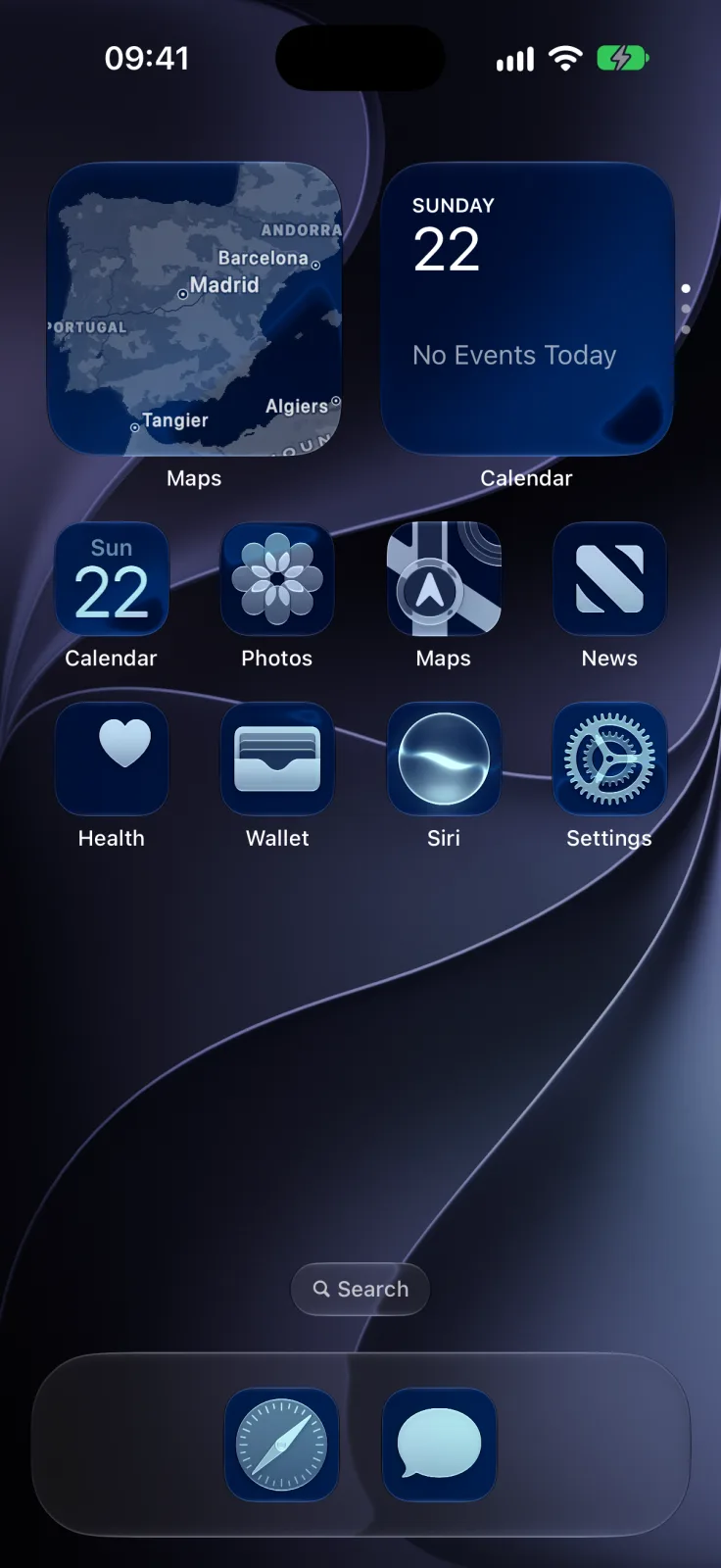
Make blue aesthetic iPhone icons with Tinted
- Touch and hold the Home Screen background until the apps jiggle.
- Tap the edit button at the top left, then Customize.
- Choose Tinted and drag the top slider to blue.
- Use the lower slider to set how strong the blue is: further left for light blue, all the way right for navy.
- Pick Light, Dark or Auto, then tap the Home Screen to finish.
The eyedropper picks a color straight from your wallpaper, which is the quickest way to match them. These options are covered in Apple’s customization guide ↗.
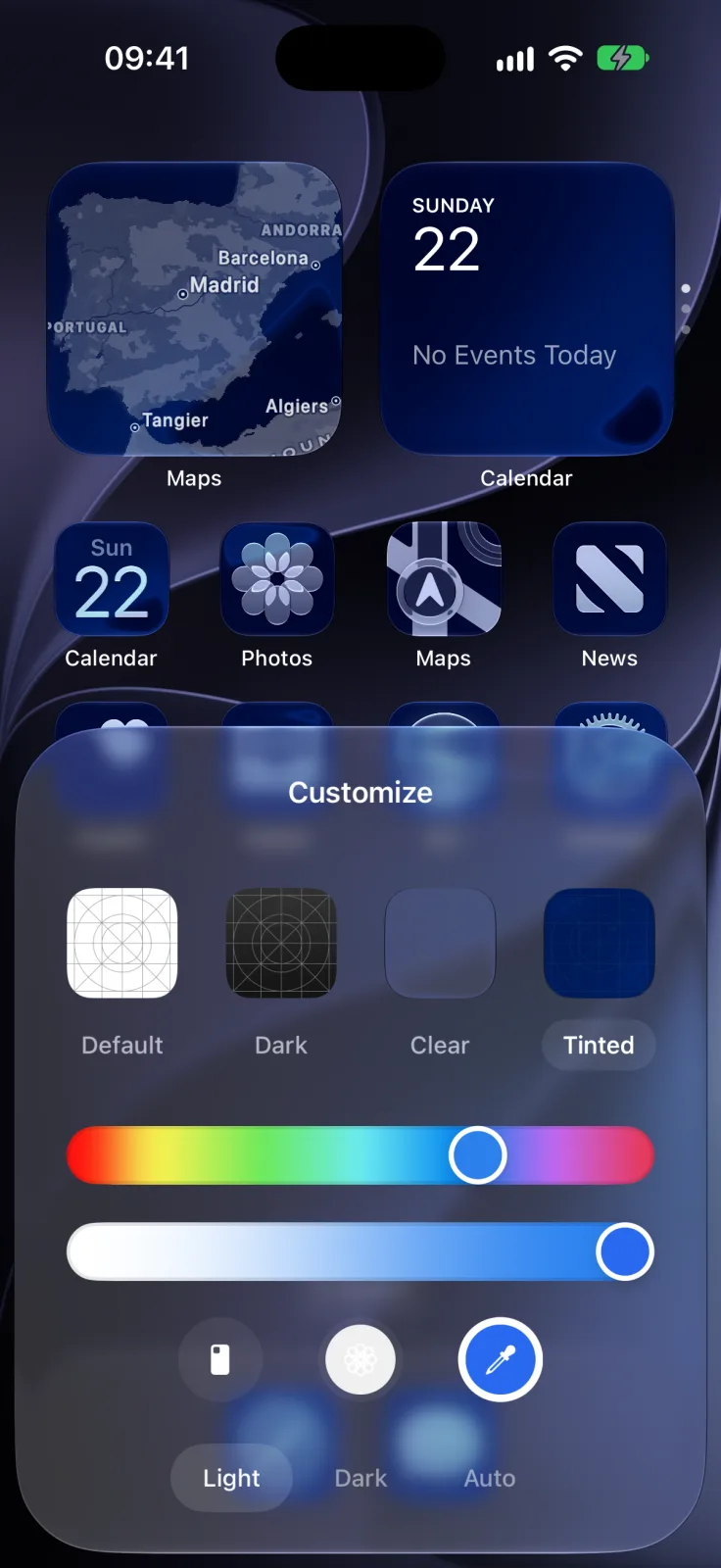
Blue widgets aesthetic: what to add
- Apple’s widgets: Tinted recolors them along with the icons. Apple’s WidgetKit guidance ↗ notes that it removes widget backgrounds and turns most images white, so photo widgets lose their colors.
- A widget app: Widgetsmith ↗ and Color Widgets ↗ let you style each widget with your own colors, fonts and photos, according to their App Store listings. Keep Default icons if you want those colors to show as designed.
- Fewer widgets: one large widget and two small ones keep a color theme calm. Add them with Apple’s Add Widget steps ↗.
Add an ocean centerpiece: a blue aquarium
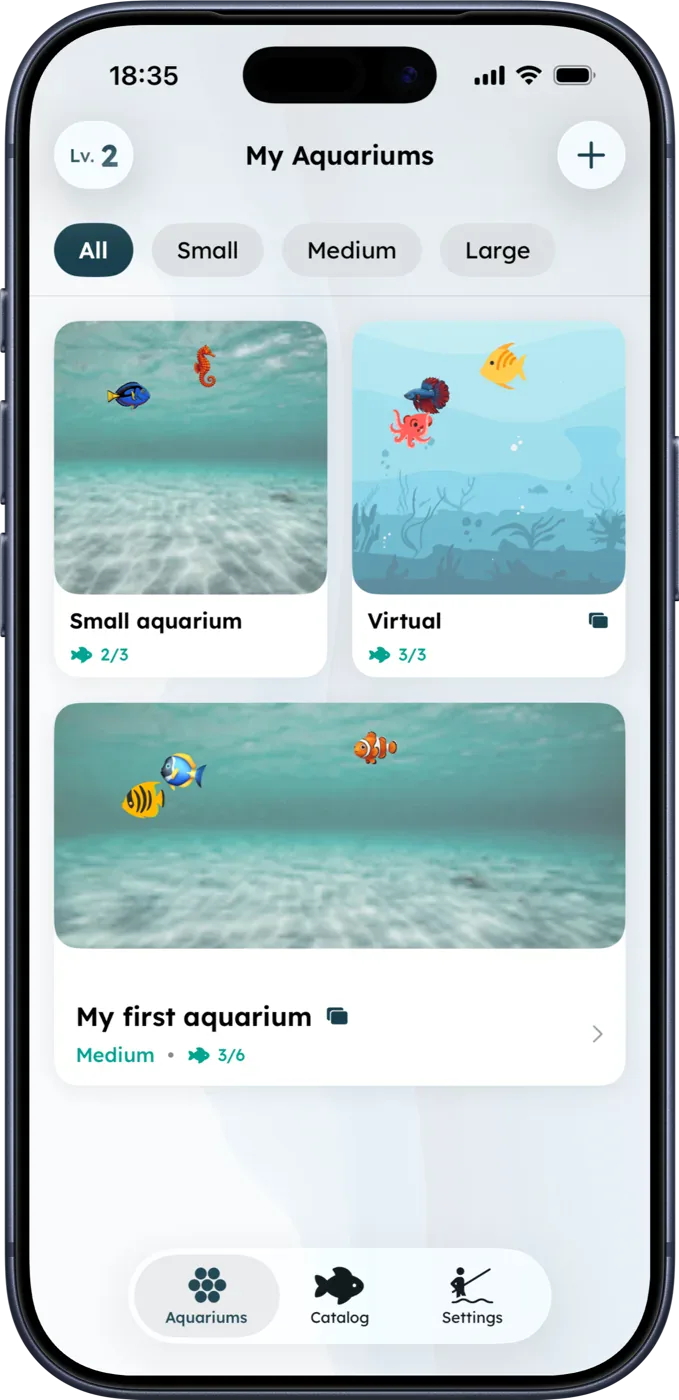
For an ocean look, a moving aquarium makes a better centerpiece than another static widget. Aquarium Widgets is our app: you create aquariums in different sizes, choose a background and add fish from themed packs, and the widget shows the tank on your Home Screen. You can also put a clock, date or month calendar behind the fish. The app is free to download; putting an aquarium on your Home Screen requires the premium upgrade, sold as a subscription or a one-time purchase. It is on the App Store ↗.
For more color ideas, see our aesthetic Home Screen ideas, and to go darker, the dark mode Home Screen guide. Fish wallpapers that pair with this theme are in our fish wallpaper guide.
Frequently asked questions
How do I make my iPhone Home Screen blue?
Set a blue wallpaper, then touch and hold the Home Screen, tap the edit button, tap Customize, choose Tinted and drag the color slider to blue.
How do I get light blue app icons?
In Customize, choose Tinted, set the top slider to blue and move the lower slider to the left for a paler shade. Use the Light appearance.
How do I make blue widgets?
Tinted recolors Apple’s widgets with the icons. For custom blue backgrounds and fonts, use a widget app such as Widgetsmith or Color Widgets and keep the Default icon style.
Why did my photo widget lose its colors?
The Tinted style removes widget backgrounds and turns most images white. Switch back to Default if a photo widget matters to your design.