Organization guide
App Library on iPhone: Find, Move and Delete Apps
Where App Library is, how to search it, move apps to the Home Screen, delete them, send new downloads there, and what you can’t change.
App Library is the screen after your last Home Screen page, where iPhone sorts every app into categories on its own. You can’t turn it off, rename its categories or move apps between them. You can search it, delete apps from it, choose whether new downloads skip the Home Screen and bring it closer by hiding pages.
Where App Library is
Swipe left past all your Home Screen pages. Apple’s iOS 27 App Library guide ↗ says it shows every app, including the ones you removed from the Home Screen, grouped into categories like Social, Entertainment and Productivity & Finance, with Suggestions and Recently Added at the top. Tap a group of small icons to open the whole category.
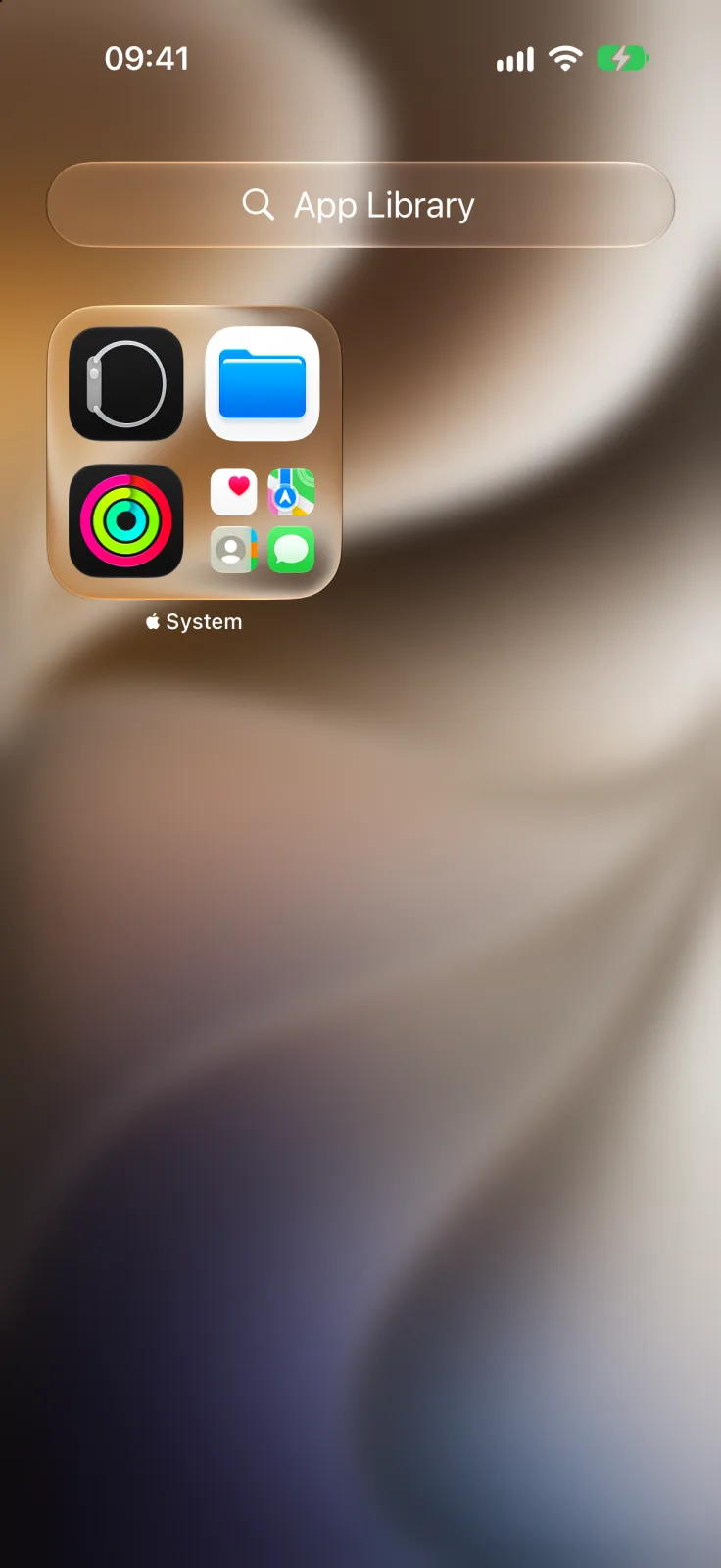
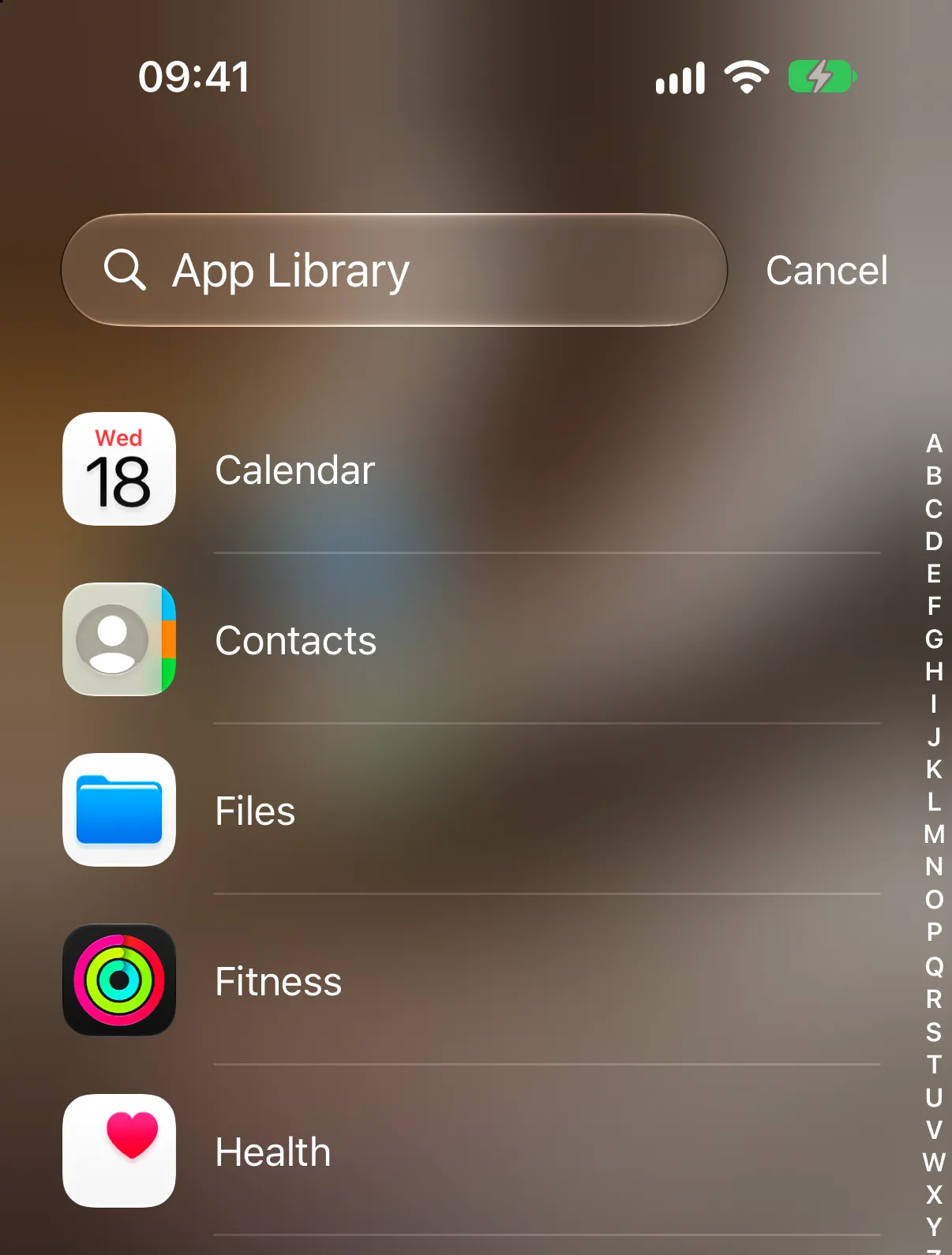
To find an app quickly, tap the search field at the top and type its name, or scroll the alphabetical list that appears.
What you can and can’t change
| You want to… | How |
|---|---|
| Move an app to the Home Screen | In App Library, touch and hold the app until the icons jiggle and it jumps to the Home Screen, then lift your finger. |
| Take an app off the Home Screen but keep it | On the Home Screen, touch and hold the app, tap Remove App, then Remove from Home Screen. |
| Delete an app for good | In App Library, tap the search field, touch and hold the app, tap Delete App, then Delete. |
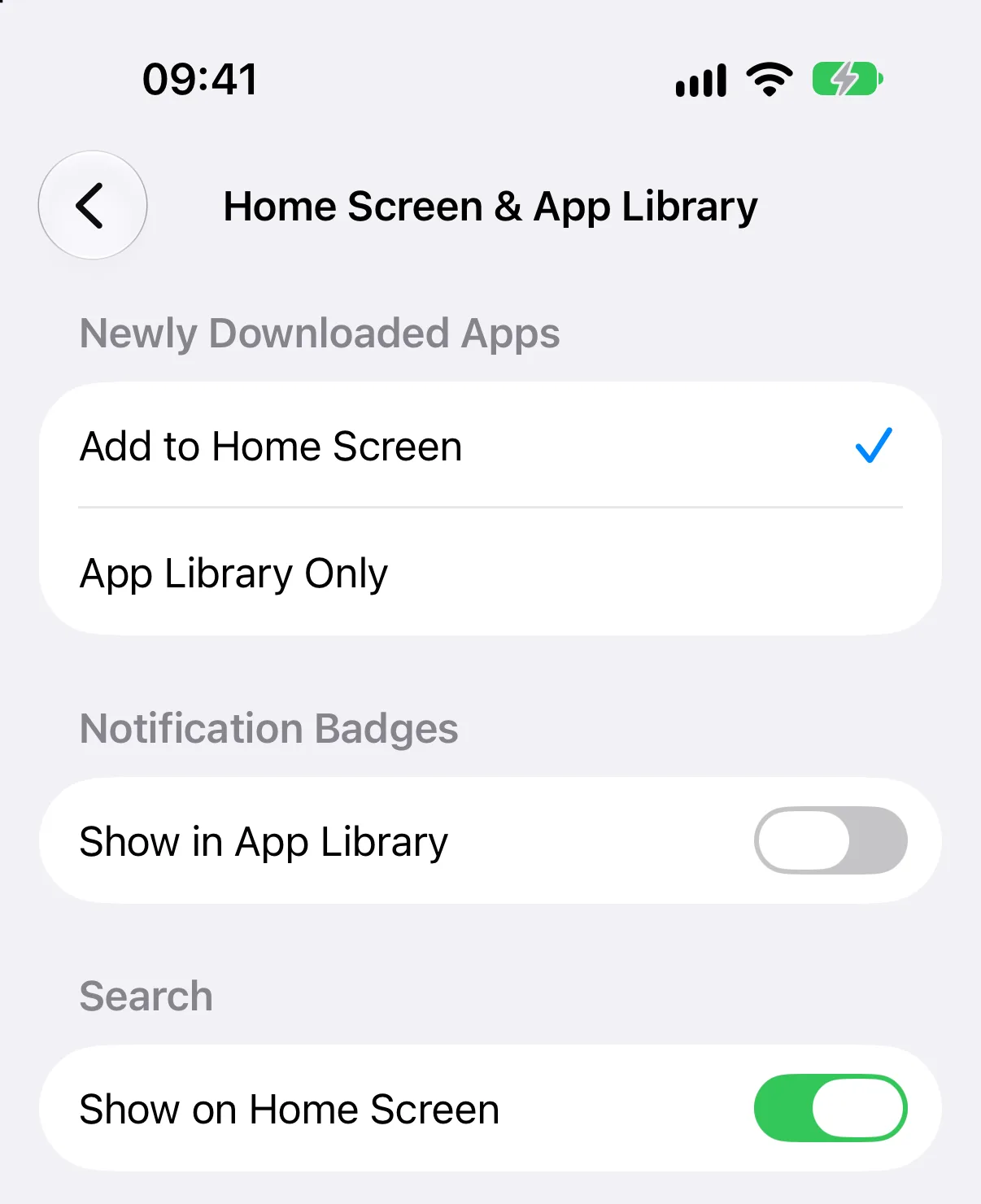
| Send new downloads only to App Library | Settings → Home Screen & App Library → App Library Only. |
| See notification badges in App Library | Turn on Show in App Library in the same settings screen. |
| Rename or rearrange categories | Not possible. iOS sorts apps by how you use them. |
| Turn App Library off | Not possible. Apple says it is always available. |
The move, category and settings steps come from Apple’s App Library guide ↗. The remove and delete steps come from Apple’s article on organizing the Home Screen and App Library ↗, which adds that if you can’t delete an app that isn’t from Apple, you should check parental controls first.
Bring App Library closer
If you have many pages, App Library is a long swipe away. Hide the pages you rarely use so it sits right after your first page:
- Touch and hold the Home Screen wallpaper until the icons jiggle.
- Tap the dots at the bottom of the screen.
- Tap to remove the checkmark under each page you want to hide, then tap Done.
Apple notes that while pages are hidden, new apps may go to App Library instead of the Home Screen. If you would rather hide one app behind Face ID, see how to hide apps on iPhone, which uses the Hidden folder at the bottom of App Library. For a Home Screen that leans on App Library for everything else, try our minimalist Home Screen guide.
Frequently asked questions
Can you turn off App Library on iPhone?
No. Apple says App Library is always available. You can stop new apps from going to the Home Screen, but App Library itself stays.
How do I delete an app from App Library?
Open App Library, tap the search field, touch and hold the app, tap Delete App and confirm with Delete.
Can I rename or reorganize App Library categories?
No. iOS sorts apps into categories by itself, and you can’t move an app to another category.
How do I move an app from App Library to the Home Screen?
Touch and hold the app in App Library until the icons jiggle and it moves to the Home Screen, then lift your finger.
Why do new apps only appear in App Library?
Settings → Home Screen & App Library may be set to App Library Only, or some Home Screen pages may be hidden.