Step-by-step guide
Sticky Note Widget for iPhone: Notes on Your Home and Lock Screen
Put a sticky note widget on your iPhone Home Screen or Lock Screen with Sticky Widgets and similar apps, or use a free Reminders checklist.
To get a sticky note widget on your iPhone, install a sticky-note app, write the note in it and add the app’s widget to your Home Screen or Lock Screen. The note then sits on your screen like a paper note on a fridge. Below are three apps that do this, how they differ, and a free built-in option if your note is really a checklist.
Sticky note widget apps compared
Details come from each App Store listing as of November 2026. All three are free to download.
| App | Home Screen | Lock Screen | Extras, per the listing |
|---|---|---|---|
| Sticky Widgets ↗ | Unlimited notes in every widget size, free | With the paid upgrade | Tap the widget to edit, checklists, iCloud sync, works on iPad |
| Sticky Notes Widget ↗ | Yes | Yes | Text, checklist or photo notes; subscription for unlimited notes |
| Sticky Notes & Color Widget ↗ | Yes | Not listed | Color-coded notes, voice-to-text, reminders, app lock |
Sticky Widgets: the closest thing to a paper note
Sticky Widgets is built around one action: add a widget, tap it and type. Its listing says the free version includes unlimited widgets, three background colors, three fonts and iCloud sync, so the same note can appear on another device signed in to your account. The upgrade adds any color, gradients, more fonts and pinning a note to the Lock Screen.
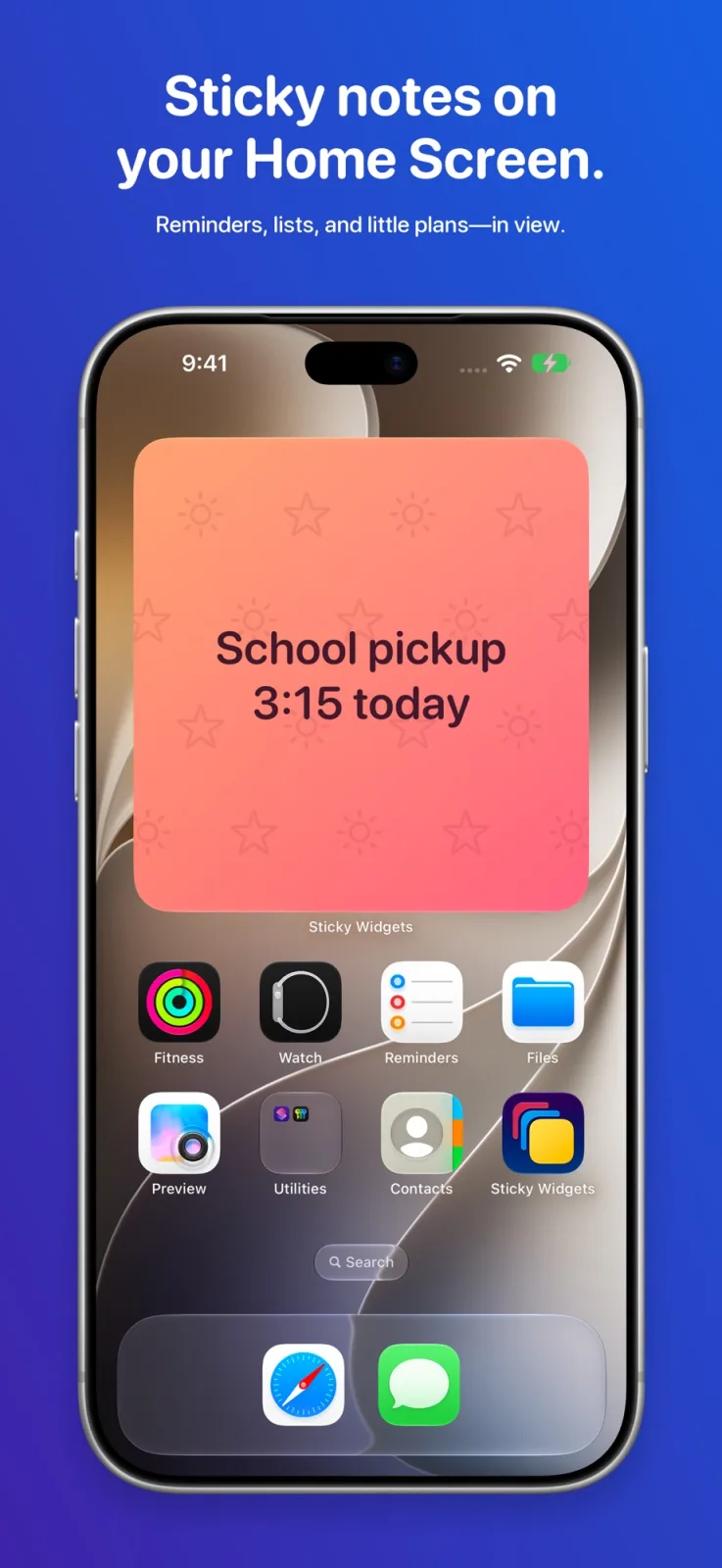
Pick the widget size for how much you write. A small widget fits a phone number or one reminder; a large one holds a short list.
A sticky note on the Lock Screen
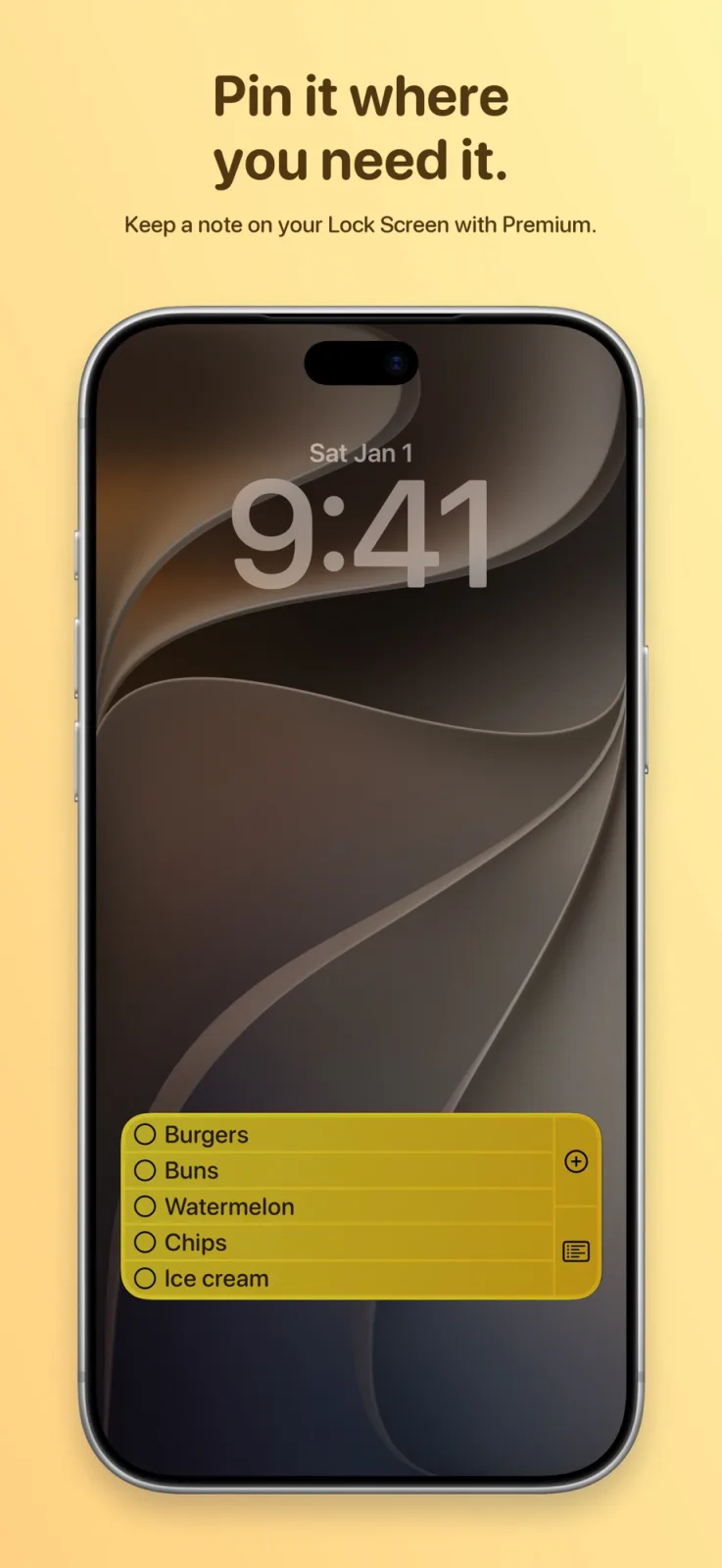
Lock Screen widgets are small, so a note there works best as a few words. Sticky Notes Widget lists Lock Screen widgets, and Sticky Widgets offers Lock Screen pinning in its paid upgrade. To add one, touch and hold the Lock Screen, tap Customize, choose the Lock Screen, tap Add Widgets and pick the app, following Apple’s Lock Screen guide ↗.
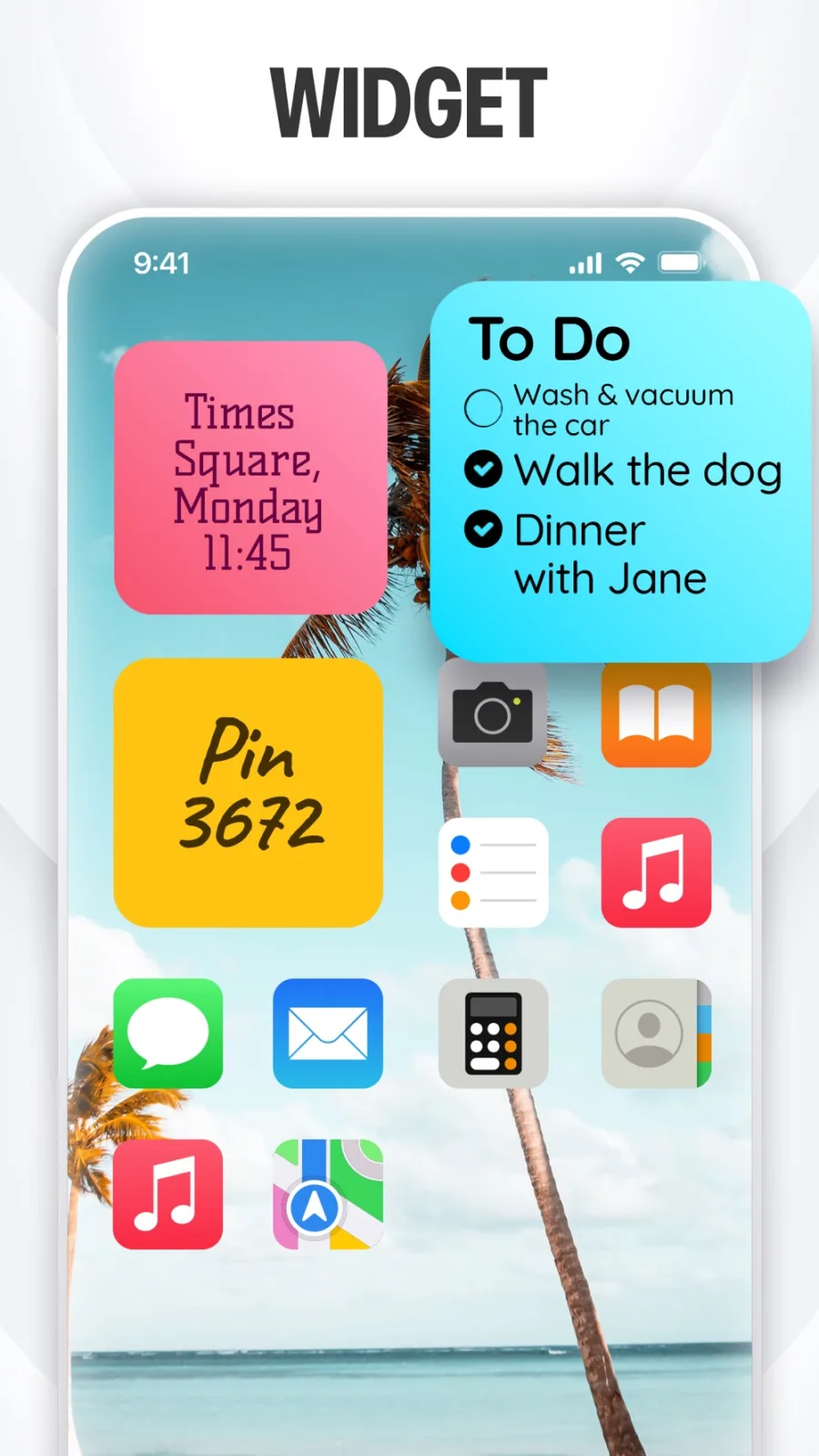
If you like color-coding, Sticky Notes & Color Widget lets you tag notes by color, for example work, home or shopping, and dictate a note instead of typing it.
Free option: a Reminders checklist
Many sticky notes are really lists: groceries, packing, today’s three tasks. For those, the built-in Reminders widget works without another app, and you can check off an item by tapping it in the widget, according to Apple’s Reminders guide ↗. It cannot show free-form text or change color, which is why people move to a sticky-note app.
- Create a list in Reminders, for example “Today”.
- Touch and hold the Home Screen background, tap Edit, then Add Widget.
- Search for Reminders, choose a size and tap Add Widget.
- Touch and hold the widget, tap Edit Widget and choose your list.
The gallery steps follow Apple’s iOS 27 widget guide ↗. Our Reminders widget guide has more detail, and if a note still shows old text after you edit it, try the fixes in widget not updating.
Keep the rest of the Home Screen calm
A note works best when it is not competing with a dozen other widgets. One way to balance a page is a single note next to something you enjoy looking at. Aquarium Widgets, our app, puts an aquarium with swimming fish on your Home Screen, and it can show a clock, today’s date or a month calendar behind the fish. Aquarium Widgets is free to download; putting an aquarium on your Home Screen requires the premium upgrade, sold as a subscription or a one-time purchase. See the App Store listing ↗.
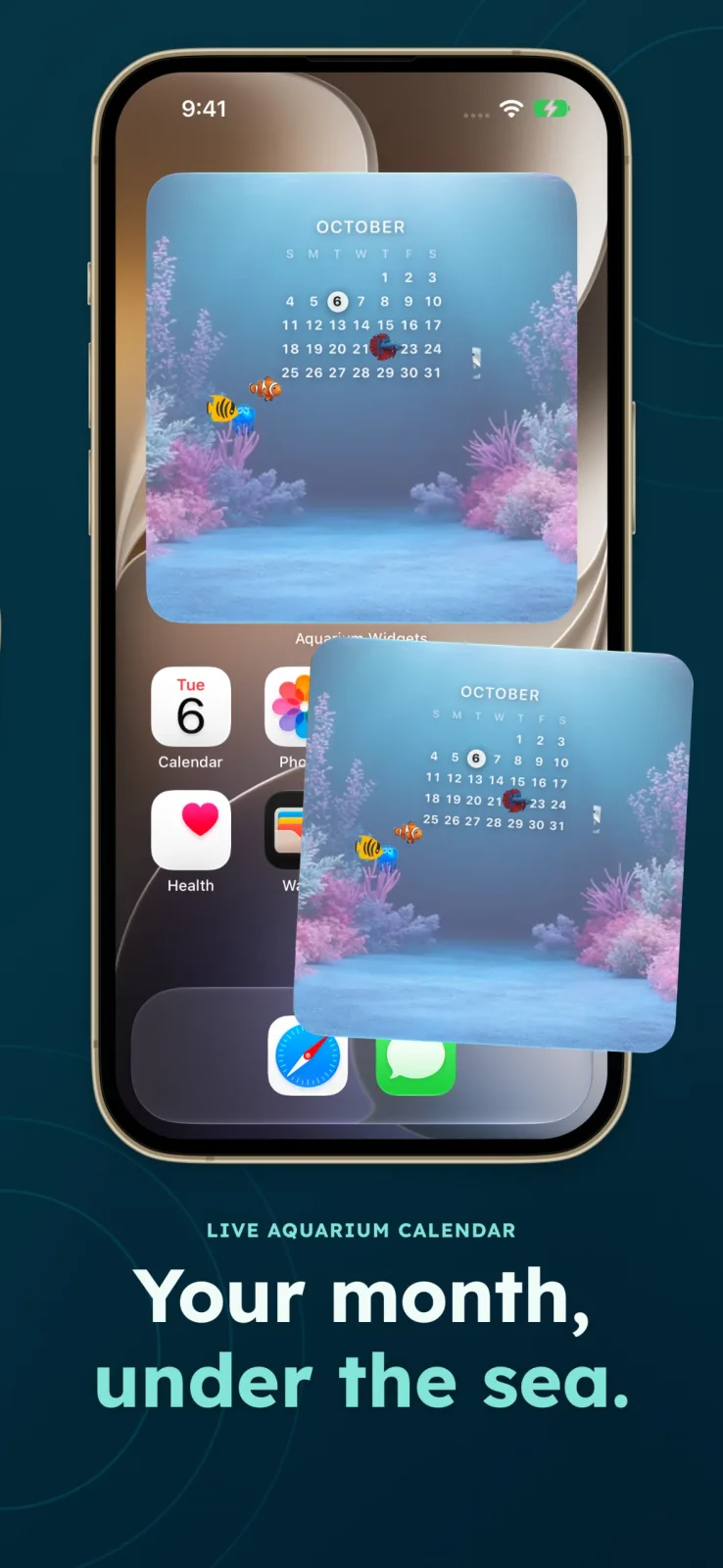
For layout ideas, see our minimalist Home Screen guide.
Frequently asked questions
How do I put a sticky note on my iPhone Home Screen?
Install a sticky-note app such as Sticky Widgets, write the note, then touch and hold the Home Screen, tap Edit, tap Add Widget and add the app’s widget.
Is there a free sticky note widget for iPhone?
Sticky Widgets is free to download and its free version includes unlimited Home Screen notes. A Reminders list widget is a free built-in option for checklists.
Can I put a sticky note on the iPhone Lock Screen?
Yes, with an app that offers a Lock Screen widget. Sticky Notes Widget lists one, and Sticky Widgets offers Lock Screen pinning in its paid upgrade.