Step-by-step guide
How to Remove the Flashlight from the iPhone Lock Screen
Take the flashlight or camera button off the Lock Screen, put a more useful control in its place, and keep Control Center closed while locked.
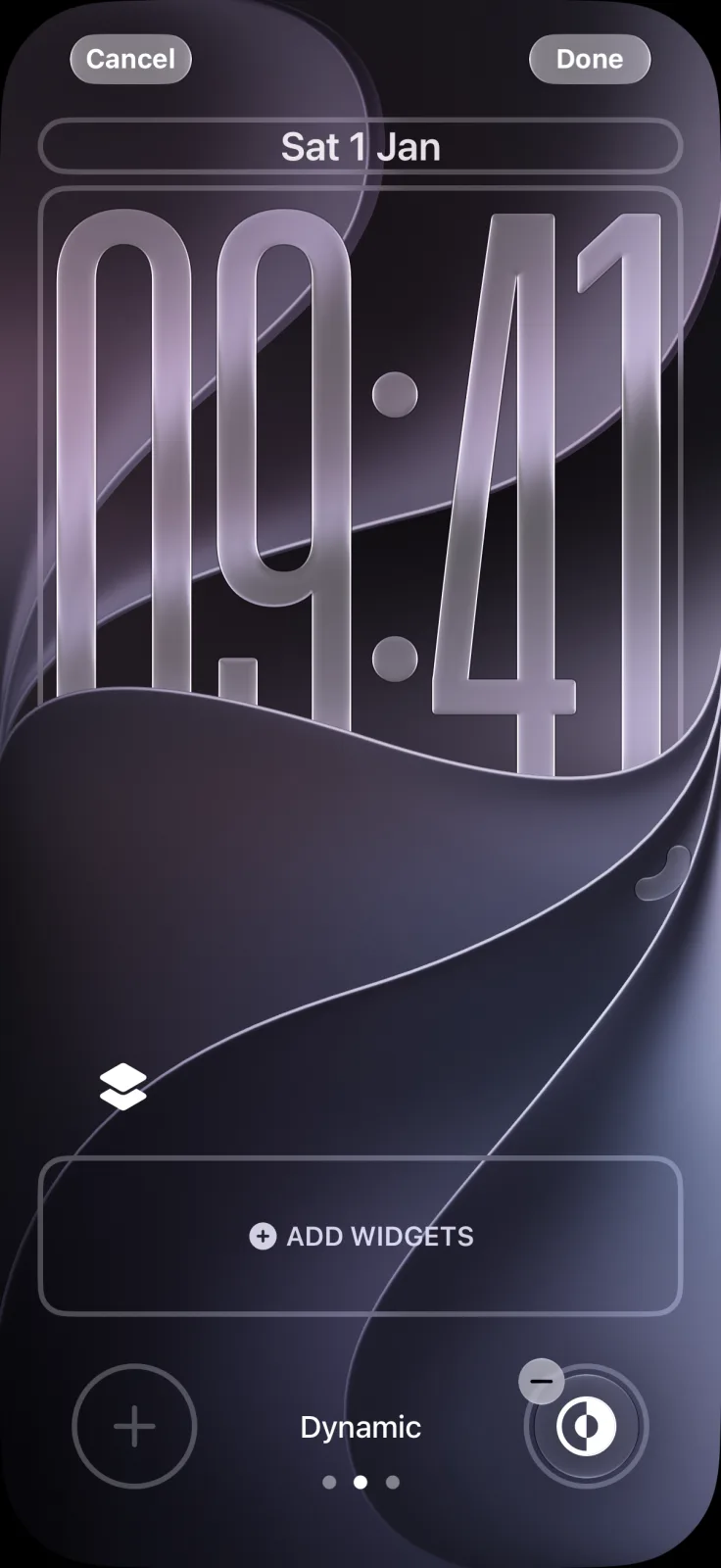
To remove the flashlight from the iPhone Lock Screen, touch and hold the Lock Screen, tap Customize, tap the minus button on the flashlight and tap Done. You can leave the spot empty or tap the plus button to put a different control there. This is the “swap the controls” step in Apple’s Lock Screen guide for iOS 27 ↗.
Remove or swap the flashlight
- Wake the iPhone and unlock it with Face ID or Touch ID, but stay on the Lock Screen.
- Touch and hold the Lock Screen until Customize appears, then tap it. If you have several Lock Screens, swipe to the one you use first.
- Tap the minus button on the flashlight at the bottom left.
- To add something else, tap the plus button in the empty spot and pick a control from the list.
- Tap Done.
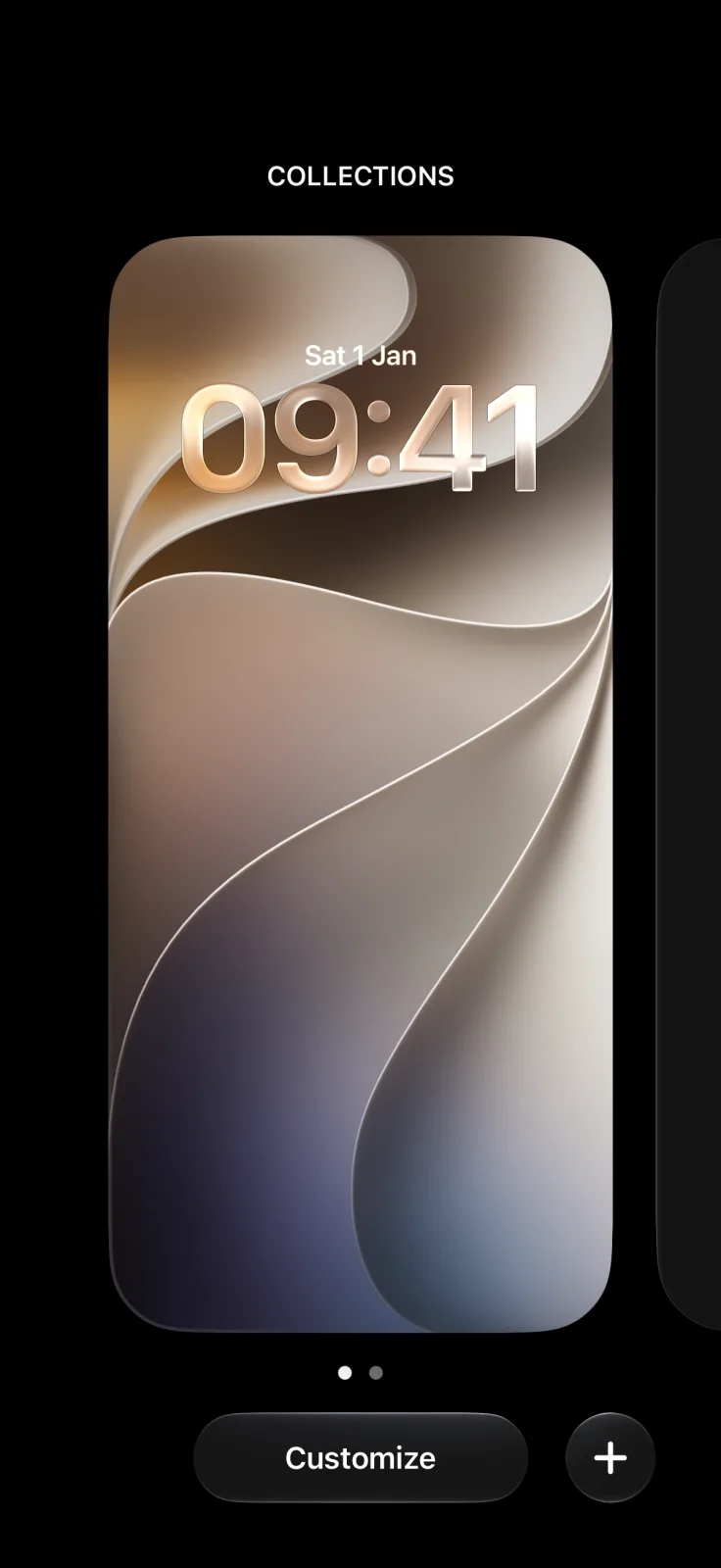
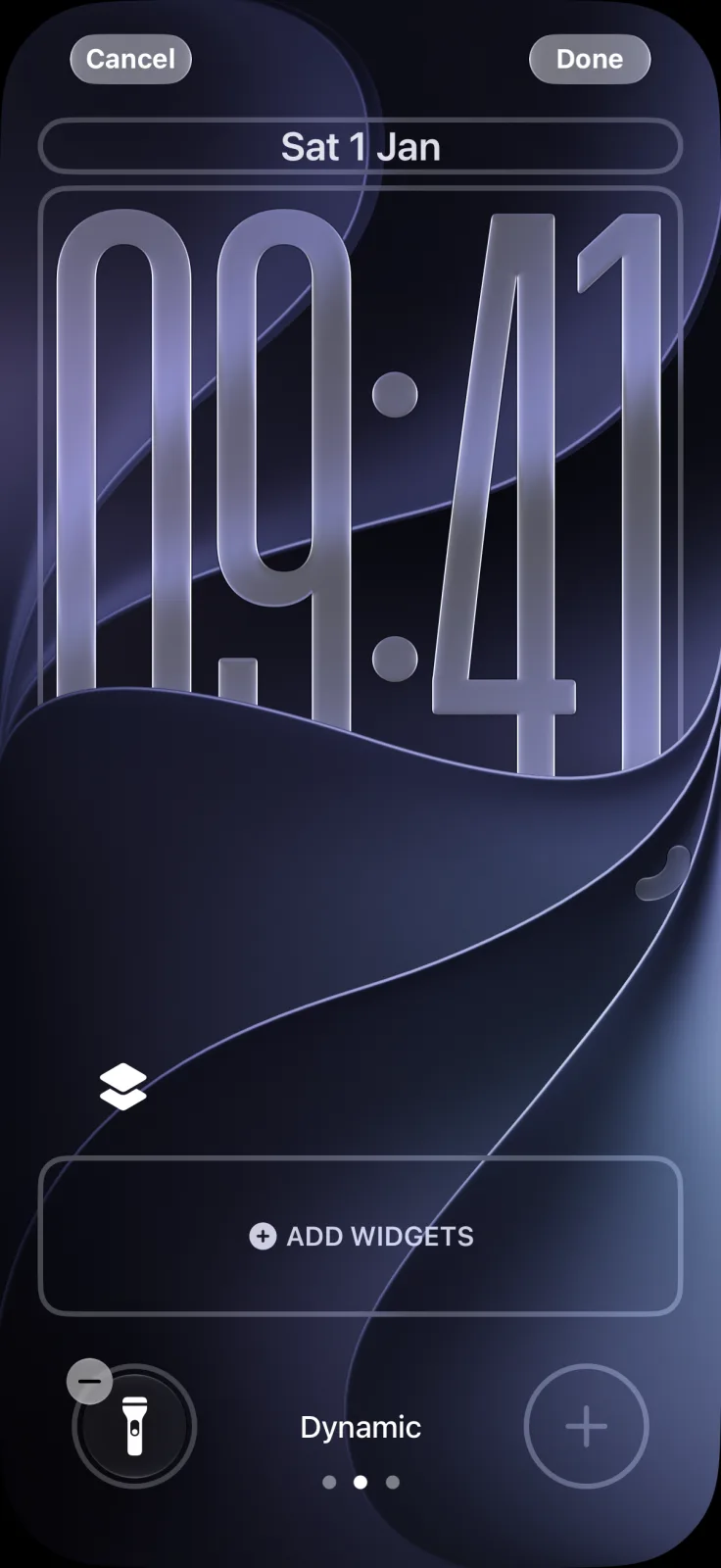
The camera button on the right works the same way. Each Lock Screen is customized separately, so if you switch between several, check each one.
What to put there instead
The plus button opens the same controls gallery as Control Center. A few options that make sense on the Lock Screen:
| Control | Good for |
|---|---|
| Dark Mode | Switching the look before bed without unlocking |
| Scan Code | Menus, tickets and Wi-Fi codes on the go |
| Recognize Music | Naming a song before it ends |
| Run Shortcut | One shortcut you use daily, like a note or a timer routine |
| Nothing | No accidental presses at all |
Other ways to reach the flashlight
Removing the Lock Screen button doesn’t remove the flashlight from the iPhone. According to Apple’s flashlight guide ↗, you can still turn it on from Control Center, by asking Siri, or with the Action button if your iPhone has one and you set it to the flashlight.
If the problem is other people using Control Center on your locked iPhone, go to Settings → Face ID & Passcode (Touch ID & Passcode on iPhone Duo and iPhone SE) and turn off Control Center under Allow Access When Locked. Apple notes ↗ that this protects your information but also takes away your own quick access.
To rearrange Control Center itself, follow our Control Center guide. For the widgets under the clock, see Lock Screen widgets on iOS 27.
Frequently asked questions
Can you remove the flashlight from the iPhone Lock Screen?
Yes. Touch and hold the Lock Screen, tap Customize, tap the minus button on the flashlight and tap Done.
Can I replace the flashlight with another control?
Yes. After removing it, tap the plus button in the empty spot and choose a control such as Dark Mode or Scan Code.
How do I turn on the flashlight if I remove it from the Lock Screen?
Use Control Center, ask Siri, or set the Action button to the flashlight if your iPhone has one.
How do I stop Control Center from opening on the Lock Screen?
Go to Settings, then Face ID & Passcode, and turn off Control Center under Allow Access When Locked.