Step-by-step guide
How to Customize Control Center on iPhone in iOS 27
Open Control Center’s edit mode, move, resize and remove controls, add new ones from the gallery and set up pages that make sense.
To customize Control Center on iPhone, open it, tap the Add button (+) at the top left, then drag, resize or remove controls, or tap Add a Control to add new ones. Close Control Center when you finish and the new layout is saved. The steps below follow Apple’s Control Center guide for iOS 27 ↗.
Open Control Center and start editing
- Swipe down from the top-right corner of the screen. On iPhone SE, swipe up from the bottom edge instead.
- Tap the Add button (+) at the top left. Every control now shows a remove button and a resize handle.
- Make your changes, then swipe up from the bottom center of the screen (or press the Home button on iPhone SE) to close Control Center.
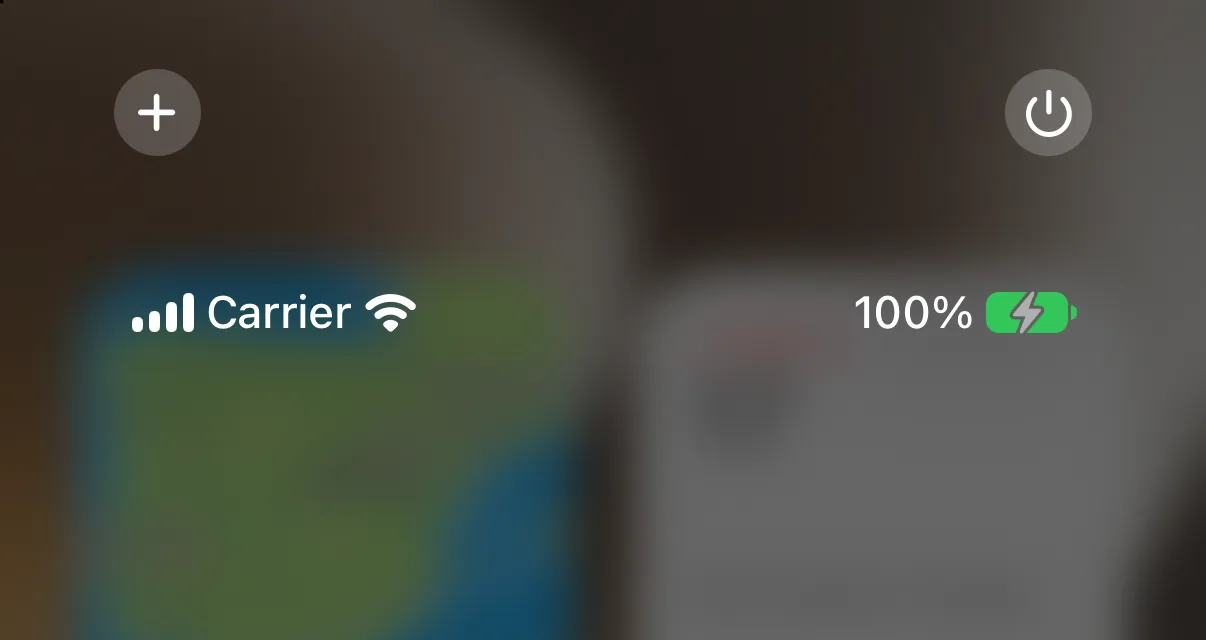
Control Center has more than one page. Keep swiping down to see the other groups, or swipe through the small icons on the right edge to jump straight to one.
Move, resize and remove controls
- Move: drag a control to a new position, on the same page or another.
- Resize: drag the handle at the lower right of a control. A bigger tile is easier to hit.
- Remove: tap the remove button at the upper left of a control or of a whole set of controls.
Add controls and make a new page
While editing, tap Add a Control at the bottom of the screen. The gallery lists controls by app, and you can search for one by name. Tap a control to add it.
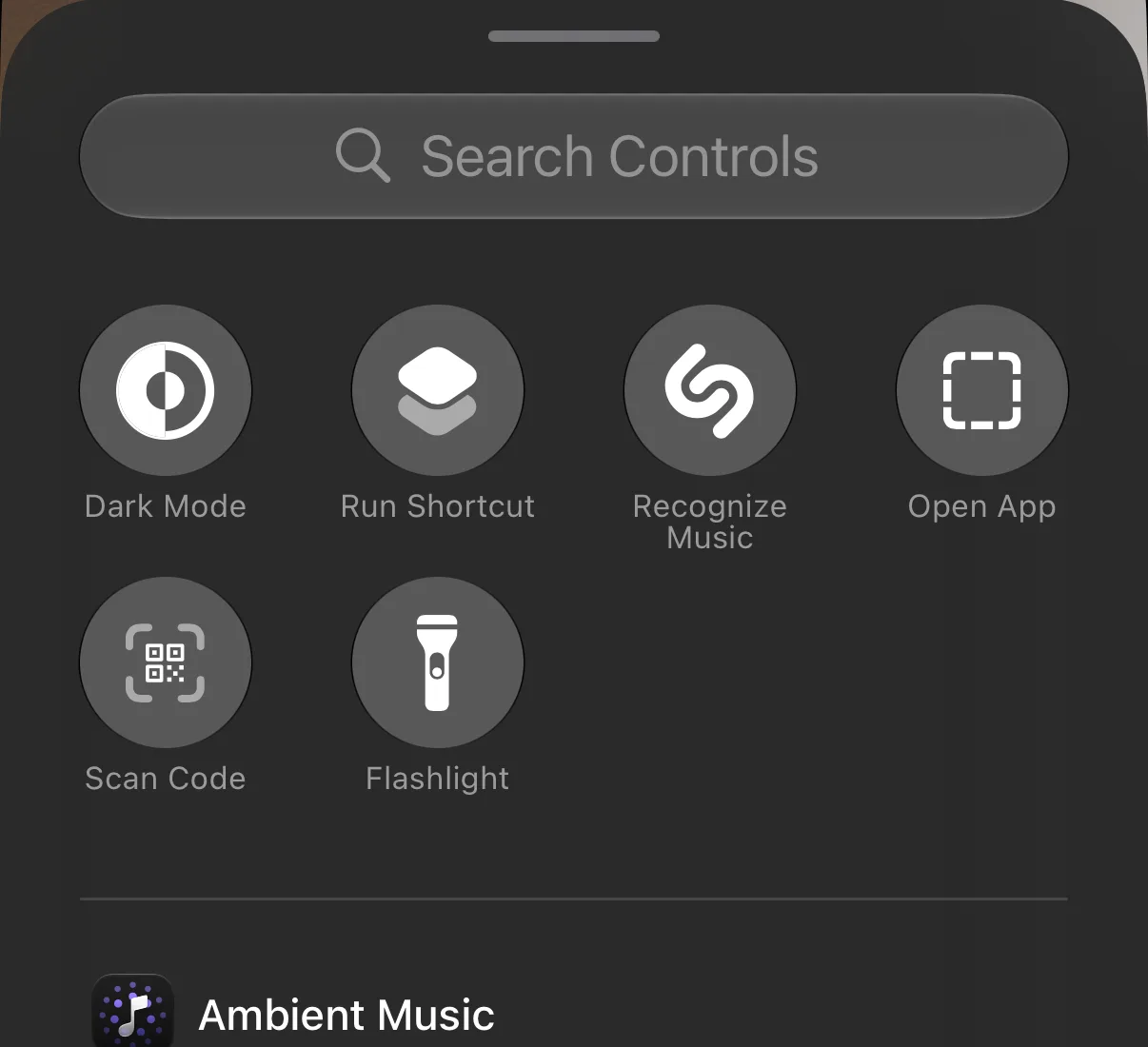
To start a new page of controls, tap the little circle at the bottom of the icons on the right edge, then tap Add a Control. You can also drag a control off the bottom of the current page.
A layout to copy
Keep the first page for the basics, like connectivity, volume and brightness, and use the next pages for tools you reach for every day:
| Page | Controls | Why |
|---|---|---|
| 1 | Connectivity, media, brightness, volume | The basics stay where you expect them |
| 2 | Flashlight, Scan Code, Dark Mode, Recognize Music | One swipe away, grouped by habit |
| 3 | Run Shortcut, Open App | Launch a shortcut or an app you use often without hunting for it |
Make the flashlight a larger tile so you can find it in the dark, and put the controls you use most at the top of each page, where your thumb lands first.
Limit where Control Center opens
To stop Control Center from opening inside apps, go to Settings → Control Center and turn off Access Within Apps. To block it on the Lock Screen, go to Settings → Face ID & Passcode (Touch ID & Passcode on iPhone Duo and iPhone SE) and turn off Control Center under Allow Access When Locked, as described in Apple’s Lock Screen access guide ↗.
The two buttons at the bottom of the Lock Screen are set up separately. Our guide to removing the flashlight from the Lock Screen shows how to swap them. For one-tap shortcuts on the Home Screen, see the Shortcuts widget guide.
Frequently asked questions
How do I edit Control Center on iPhone?
Swipe down from the top-right corner, tap the plus button at the top left, then drag, resize or remove controls. Swipe up to finish.
How do I add a control to Control Center?
While editing, tap Add a Control at the bottom of the screen, then search for the control or tap it in the gallery.
Can I add another page to Control Center?
Yes. Tap the small circle at the bottom of the icons on the right edge and add controls, or drag a control off the bottom of the page.
How do I stop Control Center from opening in apps?
Go to Settings, tap Control Center and turn off Access Within Apps.