Step-by-step guide
Pomodoro Timer on iPhone: The Clock App and Apps With Widgets
Run Pomodoro sessions with the iPhone Clock app or pick a Pomodoro app with Home Screen, Lock Screen or StandBy widgets. Compare five apps.
You can run a Pomodoro session on iPhone with the Clock app alone: set a 25-minute timer, then a 5-minute one for the break. If you want the countdown on your Home Screen or Lock Screen, or a count of finished sessions, a Pomodoro app with widgets does that for you.
The Pomodoro rhythm in one table
| Step | Length |
|---|---|
| Focus session | 25 minutes |
| Short break | 5 minutes |
| Long break, after four sessions | 20 to 30 minutes |
This is the classic pattern as Focus Keeper’s listing ↗ describes it. Most apps let you change the lengths, so treat 25 and 5 as a starting point.
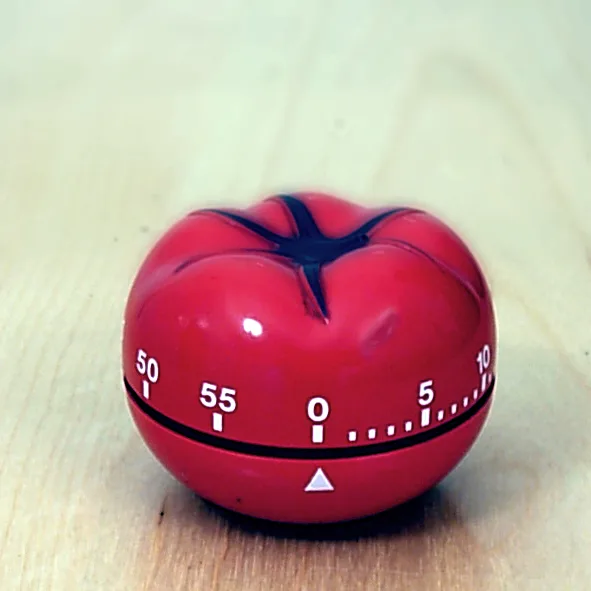
Use the Clock app as a Pomodoro timer
- Open Clock and tap Timers.
- Set 25 minutes, add a label such as “Focus” and tap Start.
- When it ends, start a 5-minute timer labeled “Break”. Both appear under Recent, so next time you start them with one tap.
- To run the break timer while the focus timer is still going, tap the Add button and pick it from Recent or the presets.
Timers keep running when you switch apps or the iPhone sleeps, according to Apple’s guide to timers ↗. To keep notifications away during a session, create a Focus in Settings → Focus: tap the Add button, choose Custom, name it, then tap Customize Focus to set its options, as in Apple’s Focus guide ↗.
Pomodoro apps with widgets
| App | On your screens, per the listing | Also |
|---|---|---|
| FocusPomo ↗ | Home Screen, Lock Screen and interactive widgets, Live Activities, a StandBy mode for focus sessions | Apple Watch app, iCloud sync |
| Flow ↗ | Home and Lock Screen widgets, Live Activities and Dynamic Island | App and website blocking; needs a recent iOS version |
| Focus Friend ↗ | A Live Activity with the timer on the Lock Screen | A character whose room you decorate on breaks |
| Forest ↗ | No widget described | Grows a tree during sessions; can block apps |
| Focus Keeper ↗ | No widget described | Adjustable session and break lengths |
All five are free to download. Flow and Forest describe subscriptions in their listings, so check what each one charges before you pick it. If you study with your iPhone on a stand, FocusPomo is the only one here that mentions StandBy. Our StandBy guide explains how to set the iPhone up for it.
Put the timer on your Home Screen
Once the app is installed, touch and hold the Home Screen, tap Edit, then Add Widget, search for the app and add the size you want, following Apple’s widget steps ↗. A small widget next to your study apps is enough for a countdown.
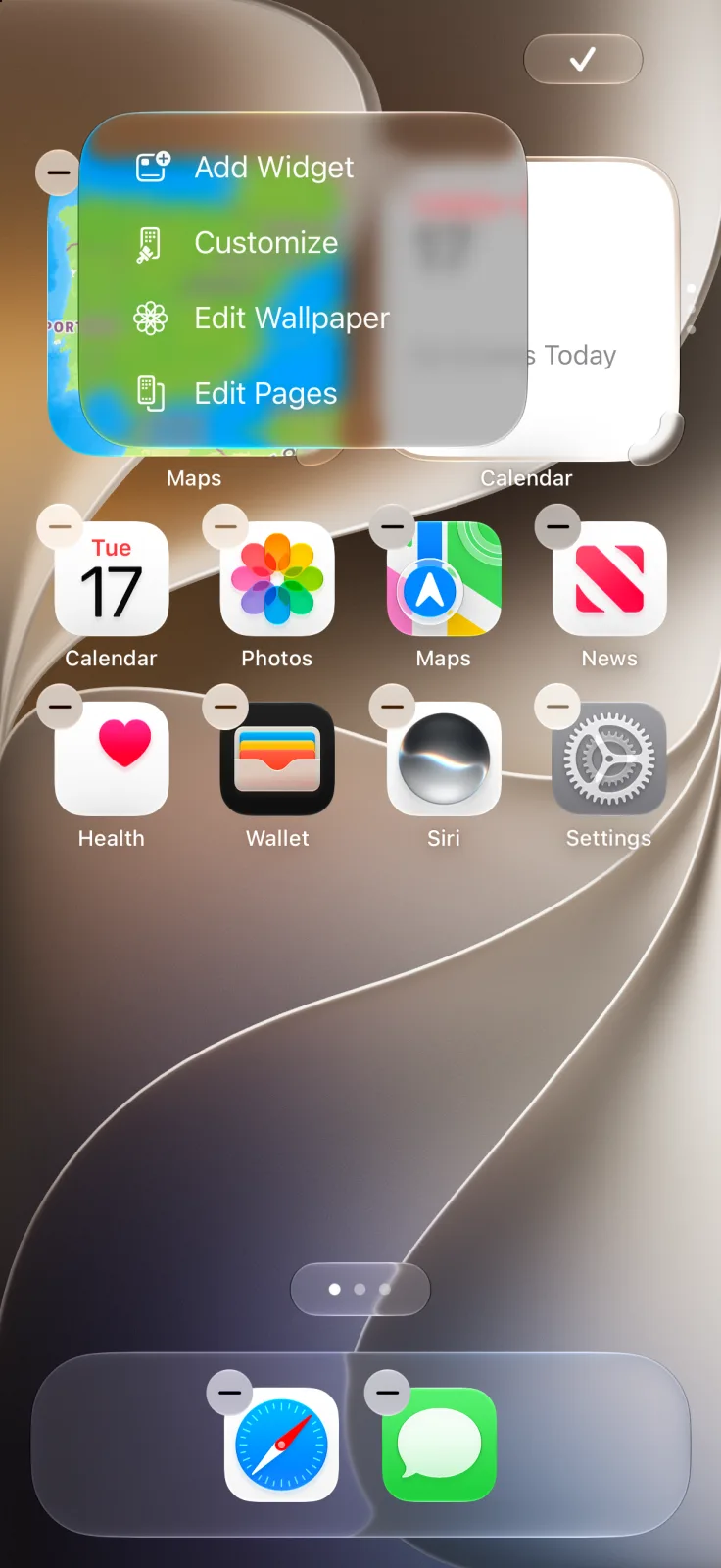
For more ways to keep a timer in view, see our countdown widget guide, and for a quieter study setup, try the minimalist Home Screen.
Frequently asked questions
Does iPhone have a Pomodoro timer?
Not a dedicated one, but the Clock app’s Timers work: set 25 minutes for focus and 5 for the break. Labeled timers appear under Recent for next time.
Can I see a Pomodoro timer on the Lock Screen?
With an app that supports it. FocusPomo and Flow list Lock Screen widgets and Live Activities, and Focus Friend shows its timer as a Live Activity.
Is there a Pomodoro timer for StandBy?
Of the apps compared here, FocusPomo is the one whose listing mentions a StandBy mode for focus sessions.