Clock guide
iPhone Clock Widget Ideas: Make Time Part of Your Home Screen
Compare digital and analog clock layouts, then add a customizable clock behind the fish in your Aquarium Widgets tank.
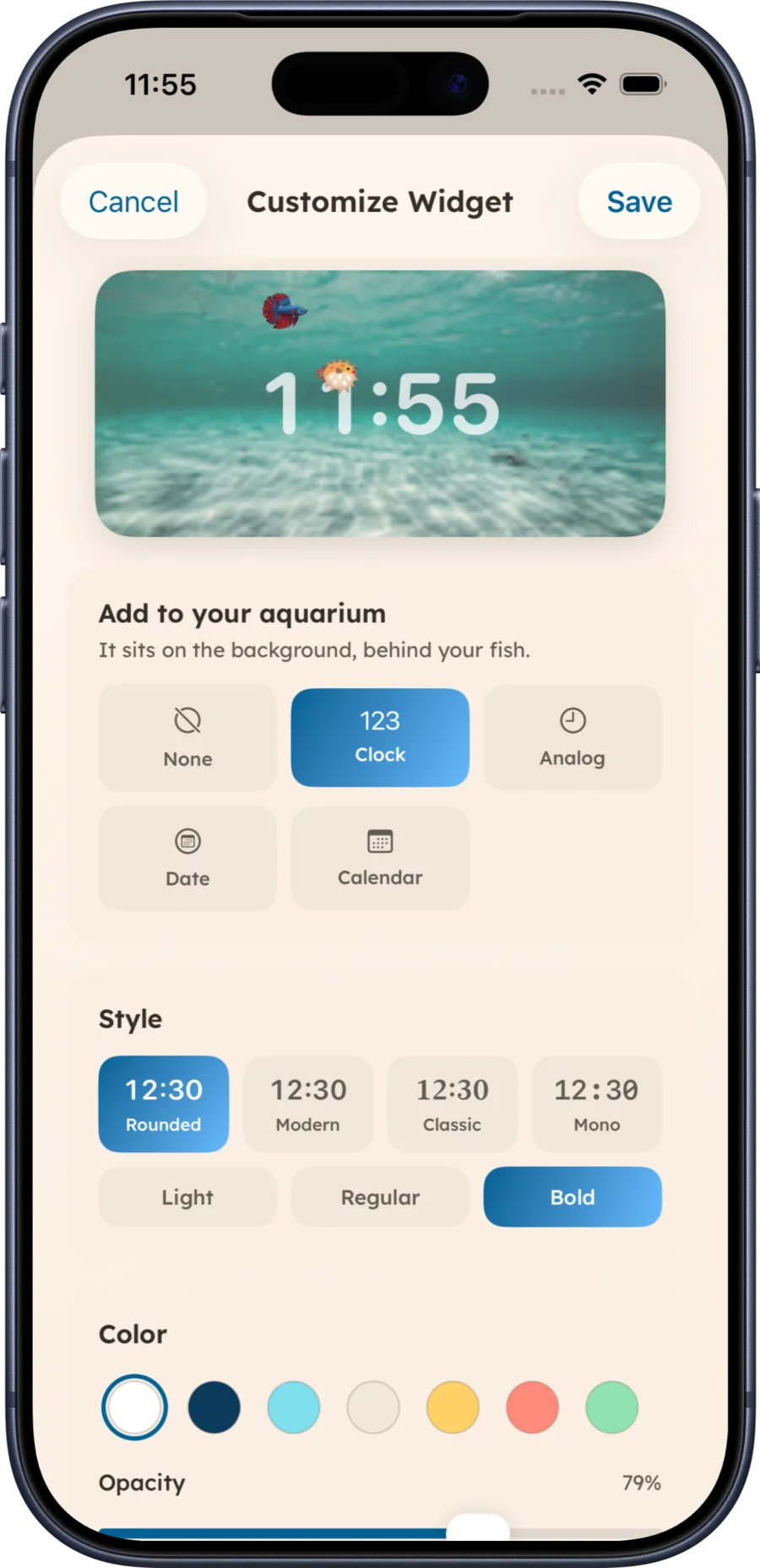
A good iPhone clock widget is readable in one glance and fits the rest of your Home Screen. A digital clock makes the time explicit; an analog face can feel quieter. Aquarium Widgets now lets you place either style behind swimming fish, so your clock can be part of an aquarium instead of another separate tile.
Digital or analog?
- Digital: choose this if you want to read the exact time quickly. Keep the numerals large and the contrast high.
- Analog: choose this if you prefer a more decorative face and can read hands comfortably at the widget’s size.
- Date: choose this when you already like the iPhone’s system clock but want the day visible in your aquarium.
The screenshots on this page show the Aquarium Widgets editor with clock, analog, date and calendar options. They also show controls for type style, weight, color, opacity, size and position. The clock sits on the aquarium background, behind the fish. These are controls in the app, rather than a change to every iPhone widget.
Three layouts to try
- Clean ocean: use a medium aquarium, white digital time and a plain teal wallpaper. Put your most-used apps below it.
- Soft monochrome: use a light clock color with a quieter background and leave enough open water around the digits.
- Statement widget: choose a larger aquarium and a prominent clock, then keep neighboring widgets small or remove them.
Make the clock easy to read
Preview the widget at the size you plan to use. If fish, sand or bright water sit over the numbers, move the clock, change its color or increase its opacity. Check the result after applying an iOS tint, too: Apple’s Home Screen guide ↗ explains that icon and widget appearance can change with light, dark and tinted settings.
When you are happy with the preview, save it in Aquarium Widgets and add the app’s widget from the Home Screen gallery. Follow our widget installation guide for the iPhone steps. If a month view would be more useful, read the calendar widget guide. Check the App Store listing ↗ for current compatibility and availability.