Calendar guide
How to Add a Monthly Calendar Widget to Your iPhone Home Screen
Choose a readable month view, place it on your Home Screen and style an aquarium calendar without confusing it with event sync.
To put a month calendar on your iPhone Home Screen, choose a widget that shows the whole month, then add it from the widget gallery. Aquarium Widgets can place a monthly calendar behind your fish, turning the aquarium into a calm date reference as well as a visual centerpiece.
Decide what kind of calendar you need
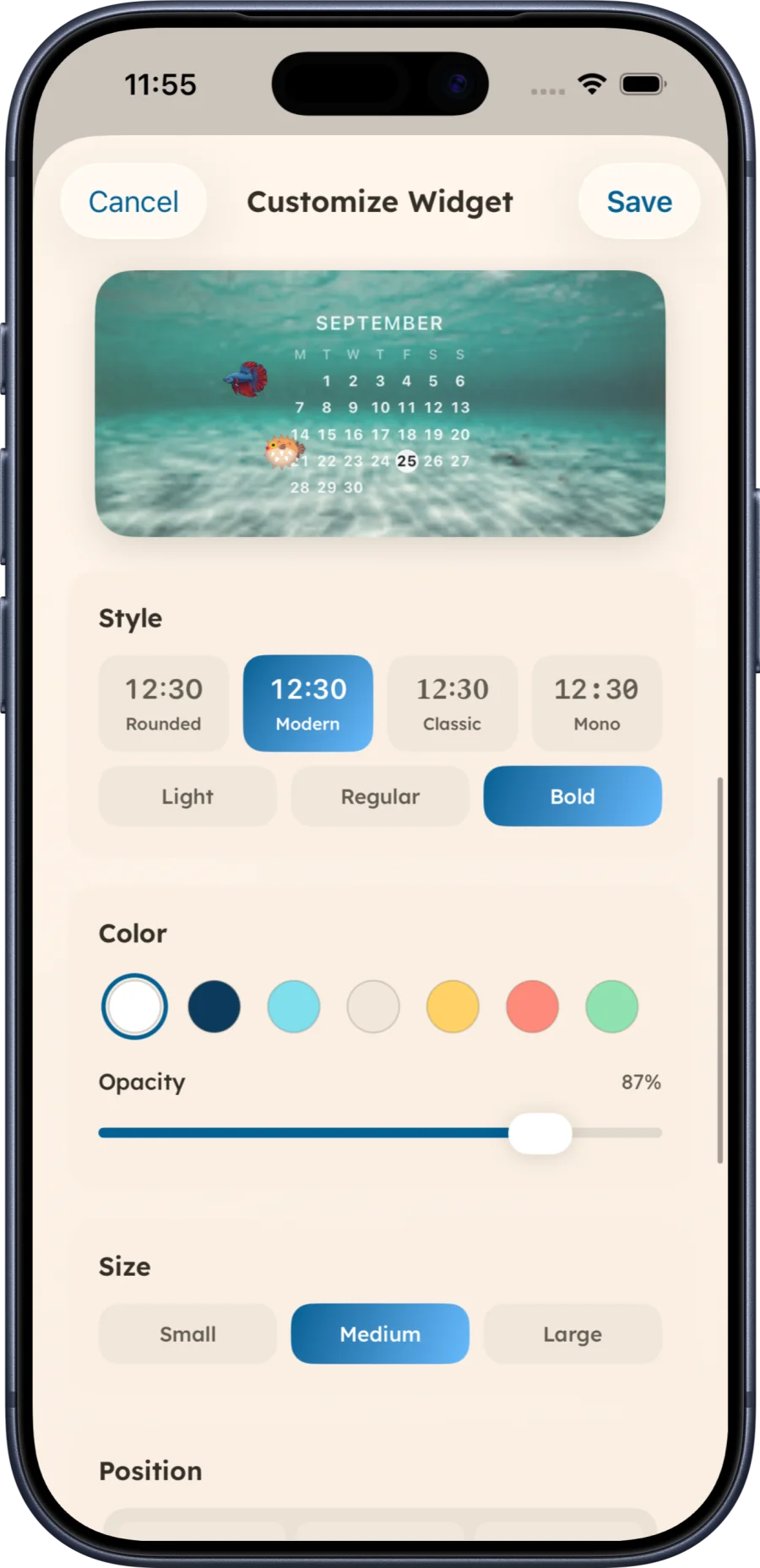
A month view answers “what date falls on which weekday?” An agenda or event widget answers “what is my next appointment?” The Aquarium Widgets screenshot shows a month grid with the current date highlighted. It does not show event names or claim synchronization with Apple Calendar. If appointments are essential, use an event-focused widget alongside the aquarium.
Set up the aquarium month view
- Open Aquarium Widgets and select the tank you want on your Home Screen.
- In the widget customization screen, select Calendar under “Add to your aquarium.”
- Adjust the style, color, opacity, size and position while watching the preview.
- Save the design, then add the Aquarium Widgets widget from the iPhone widget gallery.
Apple’s instructions for adding widgets ↗ cover the final Home Screen step. The controls shown in our screenshot are inside Aquarium Widgets; iOS’s own widget editor may offer different controls for other apps.
Keep the dates legible
Give a month grid more horizontal room than a single date or clock. A medium or large widget is usually a better place to begin, though available sizes depend on the app and your device. Use a background with quieter water behind the grid, choose a contrasting calendar color and check whether fish obscure the current date. Increase opacity if the date becomes hard to find.
For a simpler display, try the clock or date options. Our widget size guide helps you choose a layout, and the App Store page ↗ has current app requirements.