Step-by-step guide
Photo Widget on iPhone: Show an Album or Featured Photos
Add the Photos widget, switch from Featured to Album, choose exactly which pictures it shows and fix a widget that stays blank.
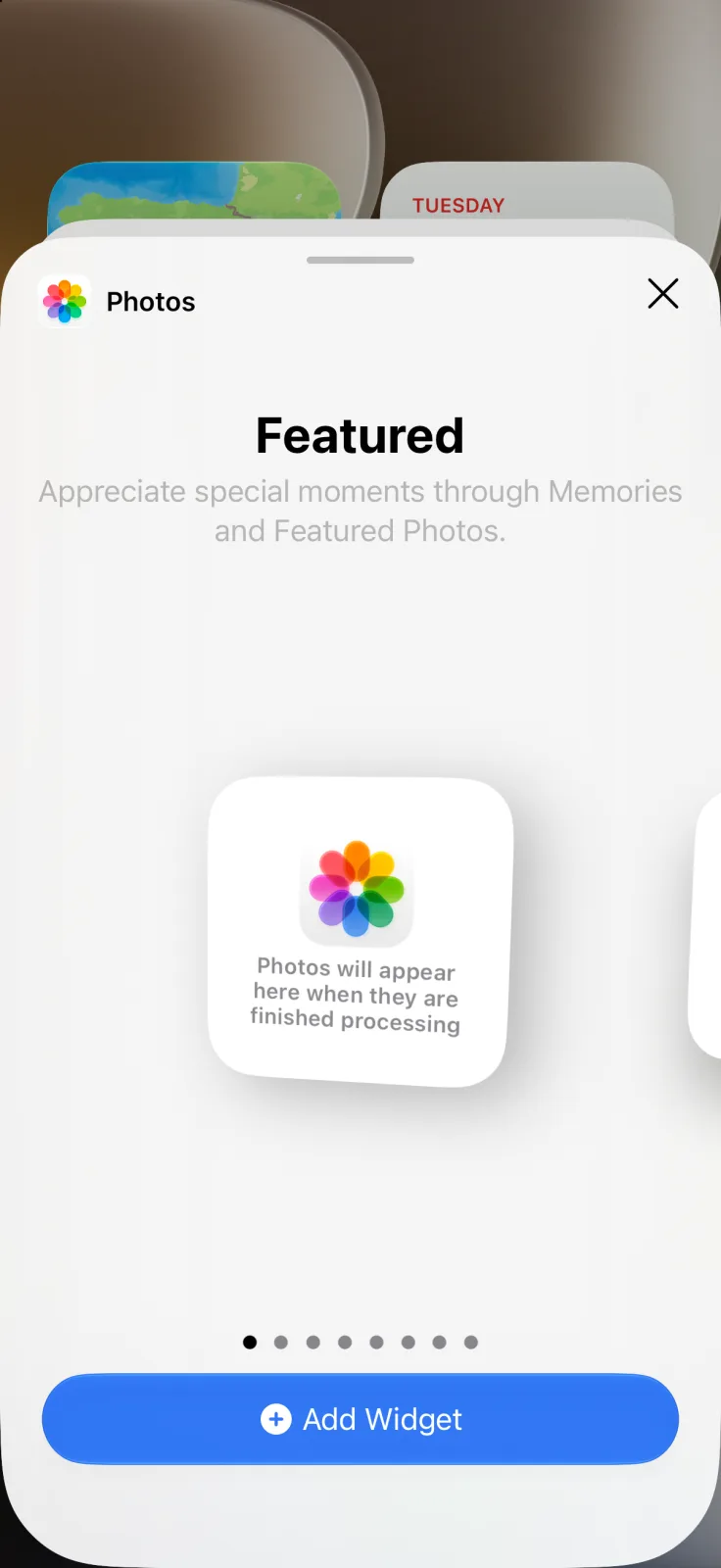
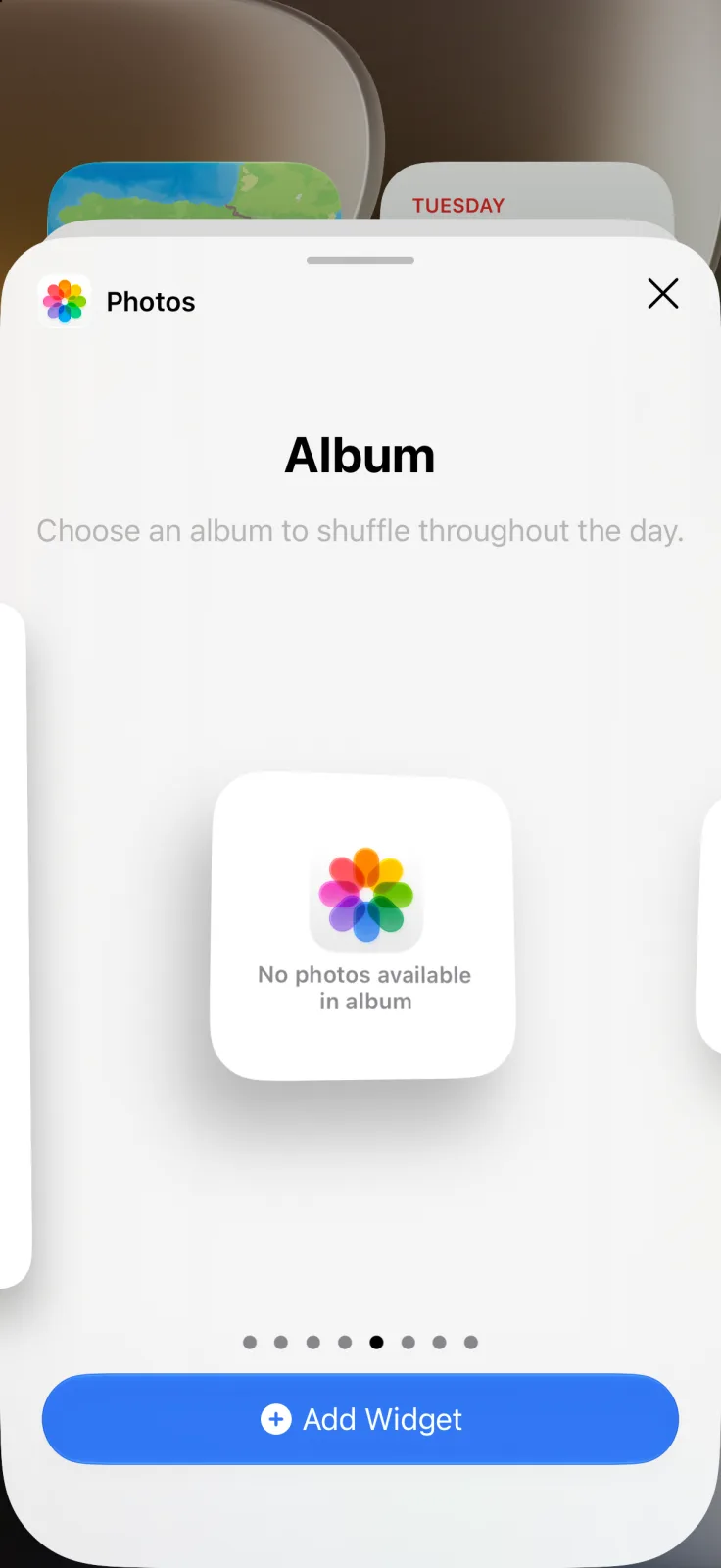
The iPhone Photos widget has two modes: Featured, which picks Memories and Featured Photos for you, and Album, which shuffles through one album you choose. To decide exactly which pictures appear, use Album and put those pictures in their own album. Both are in the Home Screen widget gallery on iOS 27.
Add the Photos widget
- Touch and hold the Home Screen background until the apps jiggle, tap Edit, then Add Widget.
- Search for Photos and tap it.
- Swipe through the options. The first ones are Featured in different sizes, followed by Album.
- Tap Add Widget, drag it into place and tap Done.
These are Apple’s standard widget steps ↗; the Featured and Album names come from the iOS 27.2 widget gallery.
Change the photo it shows
Featured chooses the pictures for you. To control them, use an Album widget, which only shows what you put in that album:
- In Photos, tap Collections, then Albums, then the Add button, and choose New Album. Name it, add the photos you want on the Home Screen and tap Create, as in Apple’s album guide ↗.
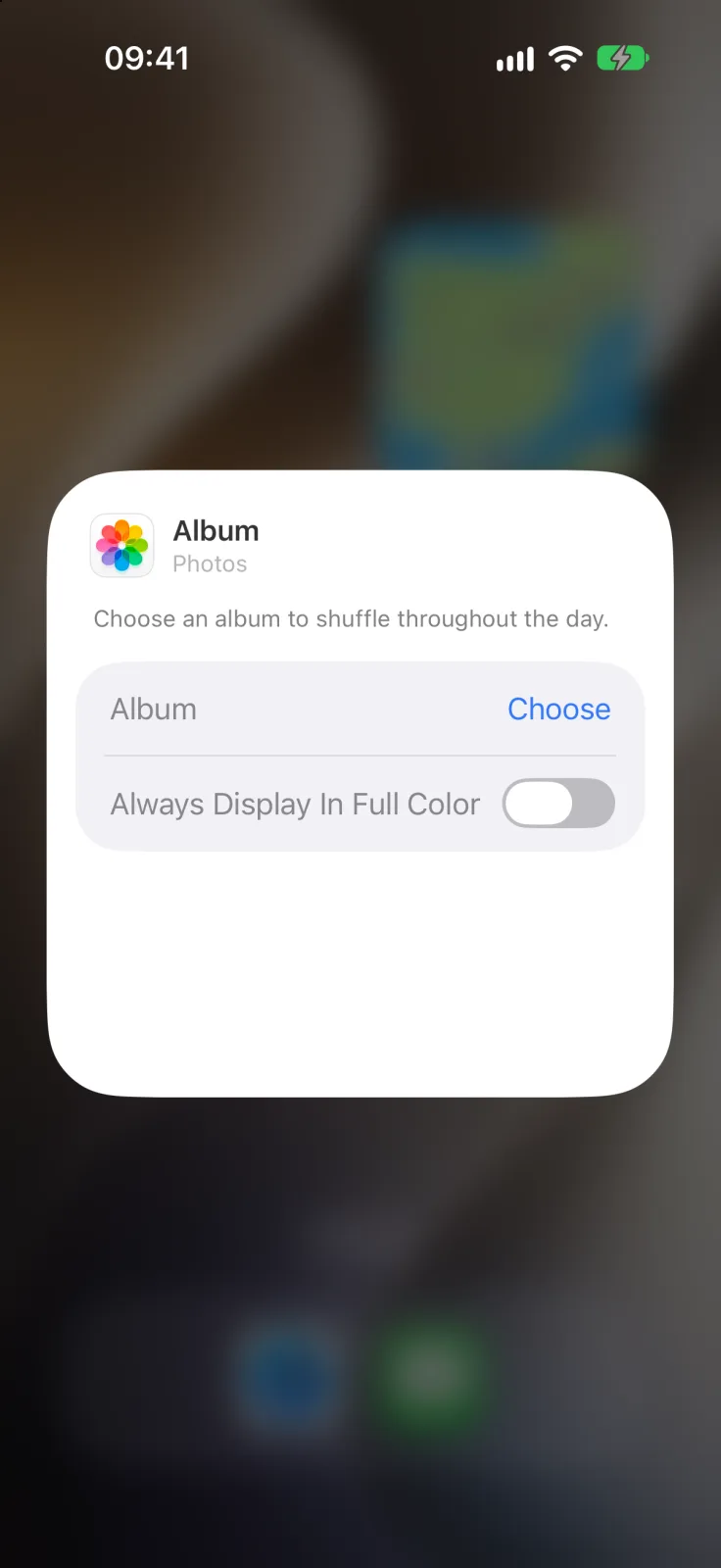
- Touch and hold the Album widget and tap Edit Widget.
- Next to Album, tap Choose and select your new album.
For one fixed photo, make an album with just that photo. To change the selection later, edit the album, not the widget.
The same panel has an Always Display In Full Color switch. Turn it on if you use tinted or clear icons and want the photo to keep its own colors.
Keep someone out of Featured photos
Apple’s Photos guide ↗ covers the settings that also apply to the widget:
- One person: open a photo of them, tap the More button, then Don’t Feature a Person, and choose Feature This Person Less or Never Feature This Person.
- Holidays: in Collections, tap your account at the top right and turn off Show Holiday Events.
- Everything automatic: on the same screen, turn off Show Featured Content. Apple says this turns off featured photos in the widget too, so switch to Album.
When the widget is blank
- “Photos will appear here when they are finished processing”: the library is new or still syncing. Give it time and check again later.
- “No photos available in album”: the album is empty or no album is chosen yet. Use Edit Widget to pick one with photos.
- Featured stays empty: check that Show Featured Content is still on.
For a photo on the Lock Screen, set it as the wallpaper: Apple’s Lock Screen guide ↗ includes a photo option and Photo Shuffle. If your widgets look dark or tinted, read why iPhone widgets turn black, and use the widget size guide to decide how much room the photo deserves.
Frequently asked questions
How do I change the photo in the iPhone Photos widget?
Use the Album version of the widget. Put the photos you want in an album, then touch and hold the widget, tap Edit Widget and choose that album.
Can the Photos widget show a specific album?
Yes. On iOS 27 the widget gallery has an Album option that shuffles through one album you pick in Edit Widget.
Why is my Photos widget blank?
The library may still be processing, the chosen album may be empty, or Show Featured Content may be turned off in Photos.
How do I stop someone from appearing in the Photos widget?
Open a photo of that person in Photos, tap More, then Don’t Feature a Person, and choose to feature them less or never.