Troubleshooting
iPhone Home Screen Blurry? How to Turn Off Wallpaper Blur
Turn off the Home Screen Blur option on iOS 27 and fix a wallpaper that keeps changing, looks zoomed in or switches back to an old one.
If your iPhone Home Screen wallpaper looks blurry while the Lock Screen looks sharp, the Home Screen’s Blur option is on. Open the Home Screen wallpaper editor and tap Blur to turn it off. If the wallpaper keeps changing or looks zoomed in, the cause is usually Photo Shuffle, a Focus linked to another Lock Screen or how the photo was framed.
Turn off Blur on the Home Screen
iOS lets you blur the Home Screen wallpaper “so the apps stand out”, as Apple’s iOS 27 wallpaper guide ↗ puts it. It is a single button, so it is easy to tap by accident. On iOS 27:
- Touch and hold an empty area of the Home Screen until the icons jiggle.
- Tap the button at the top left, then tap Edit Wallpaper.
- Tap Blur at the bottom right. When it is on, the button turns white.
- Tap Done.
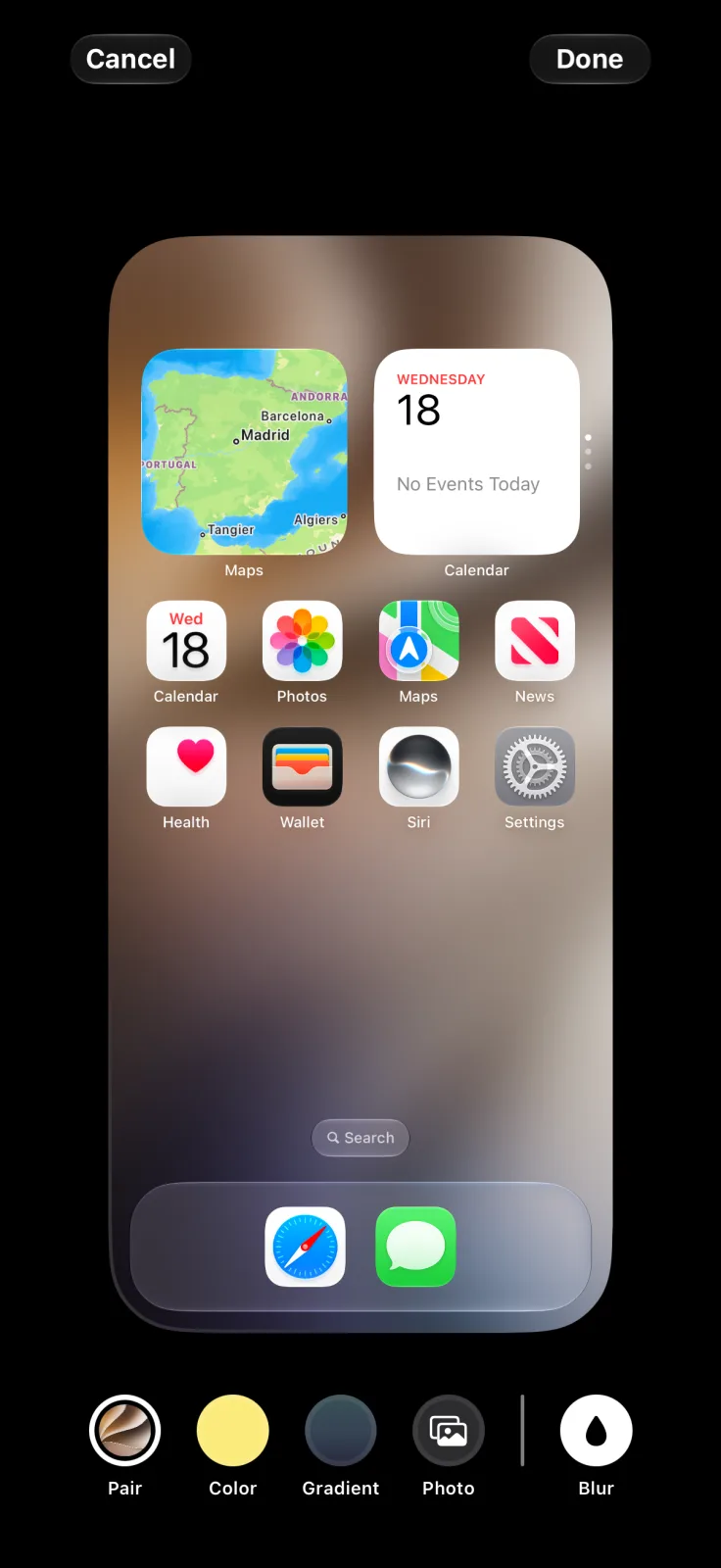
You can also get there from the Lock Screen: touch and hold it, tap Customize and choose the Home Screen. Apple’s guide also lists the path Settings → Wallpaper for new wallpapers, where Customize Home Screen shows the same Blur option.
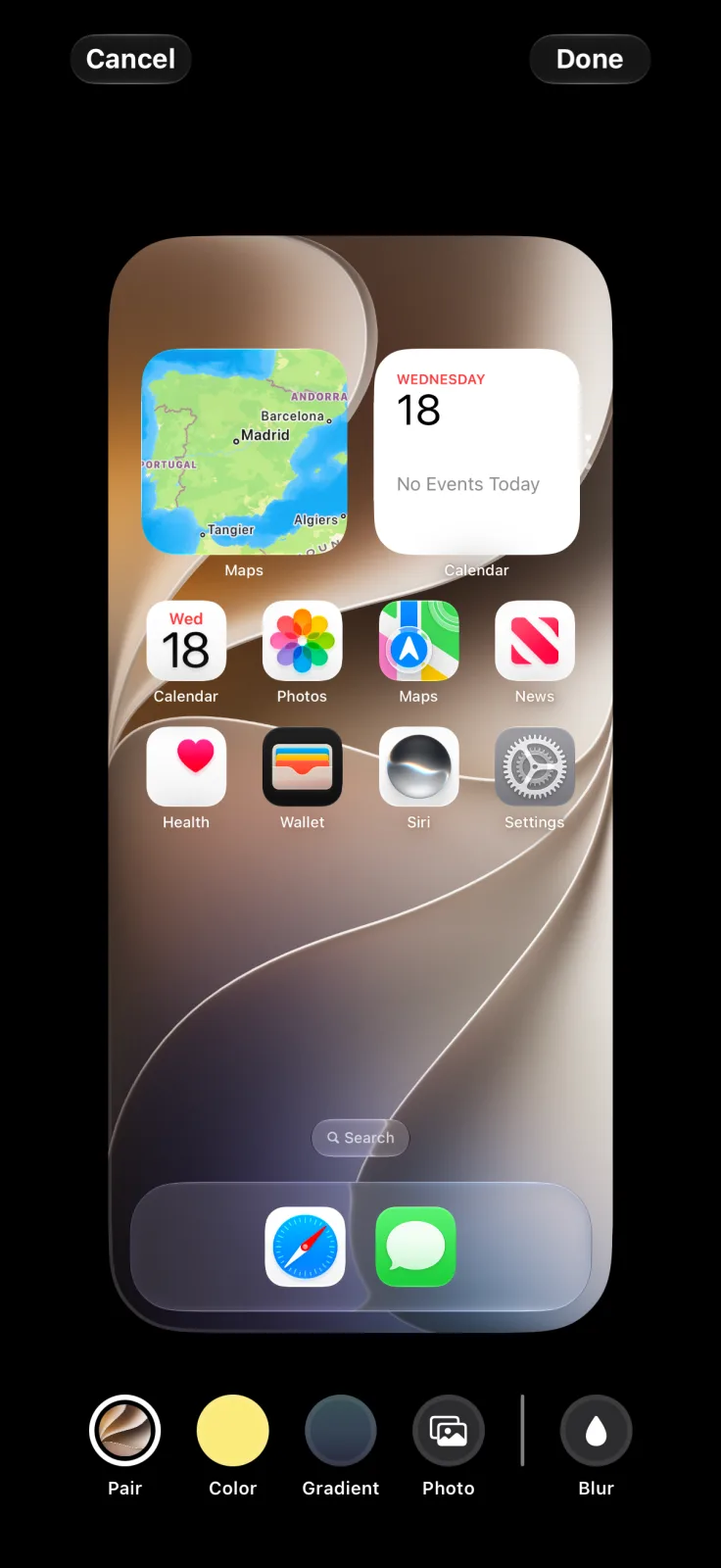
The other buttons in this editor are useful too. Pair uses the same image as your Lock Screen, Color and Gradient replace it with a plain background, and Photo lets you pick a different picture for the Home Screen only.
Other reasons the wallpaper looks wrong
| What you see | Likely cause | Fix |
|---|---|---|
| Home Screen blurry, Lock Screen sharp | Blur is on | Turn off Blur in the Home Screen editor |
| Wallpaper changes on its own | The Lock Screen uses Photo Shuffle | In Customize, tap the photo thumbnail and change the shuffle frequency or the photos |
| Wallpaper changes at certain times | A Focus is linked to another Lock Screen | Check the Focus shown at the bottom of each Lock Screen in Customize |
| Photo looks zoomed in or soft | It was enlarged when you placed it, or the photo is small | In Customize, pinch closed to zoom out, or choose a larger photo |
| Wallpaper went back to an old one | You swiped to another saved Lock Screen | Touch and hold the Lock Screen and swipe back to the one you want |
Photo Shuffle, zooming and Focus links are all described in Apple’s Lock Screen guide ↗. Apple also notes that when a Lock Screen is linked to a Focus, switching Lock Screens switches the Focus too. Our Focus Home Screen guide explains how those links work, and Apple’s Focus guide ↗ covers them in more detail.
Make icons readable without blur
People often turn on Blur because a busy photo makes app names hard to read. Instead, use a calmer photo, pick Color or Gradient for the Home Screen only, or put a large widget where the photo is busiest. Our minimalist Home Screen guide shows layouts built on plain backgrounds, and live wallpaper on iPhone explains what moves on the Lock Screen and what doesn’t.
Frequently asked questions
Why is my iPhone Home Screen wallpaper blurry?
The Blur option for the Home Screen is probably on. Touch and hold the Home Screen, open Edit Wallpaper and tap Blur to turn it off.
Why is my Lock Screen sharp but my Home Screen blurry?
The Home Screen has its own settings. Blur only affects the Home Screen, so the Lock Screen keeps the sharp photo.
Why does my iPhone wallpaper keep changing?
Your Lock Screen may use Photo Shuffle, or a Focus may be linked to a different Lock Screen. Check both in the Lock Screen’s Customize view.
How do I stop my iPhone wallpaper from zooming in?
Touch and hold the Lock Screen, tap Customize and pinch closed on the photo to zoom out. A larger photo also stays sharper.